The jurispraxis.ai panel opens on the right of a document in Microsoft Word or ONLYOFFICE. Send the open document over and it becomes a draft in a new chat. Ask about it or ask for a change: the changes an answer makes come back into the document as tracked changes, which you accept or reject as usual.
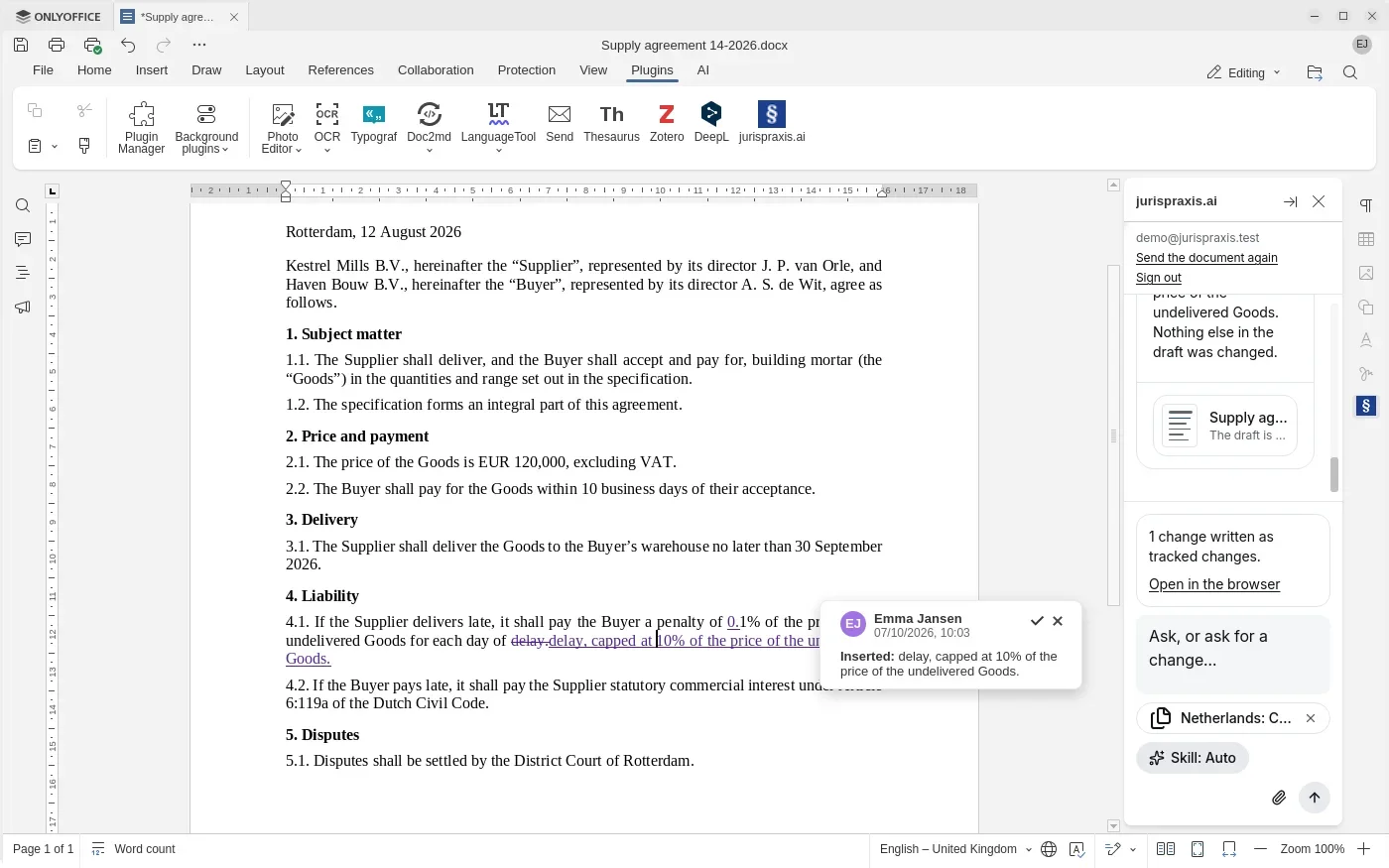
Where the panel works
- Microsoft Word: Microsoft 365, Word on the web, Word 2024, or Word for Mac 16.64 or later. Word 2019 and older take no tracked changes from an add-in.
- ONLYOFFICE: the ONLYOFFICE Desktop Editors app, version 9.4 or later. The panel does not work in the web version, ONLYOFFICE Docs.
The panel is the same in both editors: the same buttons, the same chat, the same sign-in to your account.
Installing in Word
The add-in is described by a manifest file: app.jurispraxis.ai/word-add-in/manifest.xml.
For the whole firm. Your firm’s Microsoft 365 admin uploads the manifest in the Microsoft 365 admin centre, under Integrated apps › Upload custom apps, and chooses which members get it. The add-in then reaches both Word on the computer and Word on the web. The button can take some hours to appear for everyone.
On your own, in Word on the web. Download the manifest from the link above and open any document in Word on the web. Then:
- On the Home tab, click Add-ins, then More Add-ins.
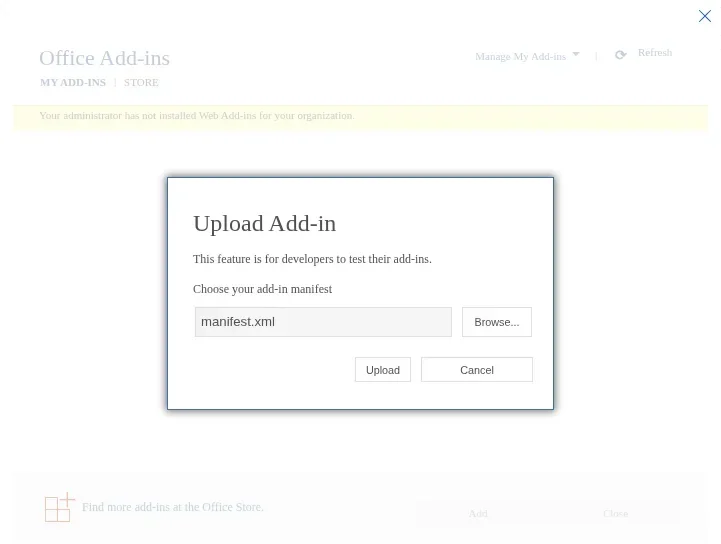
- In the Office Add-ins window, open My Add-ins.
- Click Manage My Add-ins and choose Upload My Add-in.
- Click Browse…, choose the
manifest.xmlfile and click Upload.
The notice “Your administrator has not installed Web Add-ins for your organization” in that window is normal for a personal Microsoft account.
Once it is installed, the Home tab shows a jurispraxis.ai group with an Open jurispraxis.ai button. It opens the panel.
Installing in ONLYOFFICE
- Download the plugin: app.jurispraxis.ai/onlyoffice/jurispraxis.plugin.
- In ONLYOFFICE Desktop Editors, open a document and go to the Plugins tab.
- Click Plugin Manager, open Available plugins and click Install plugin manually.
- Choose the downloaded
jurispraxis.pluginfile.
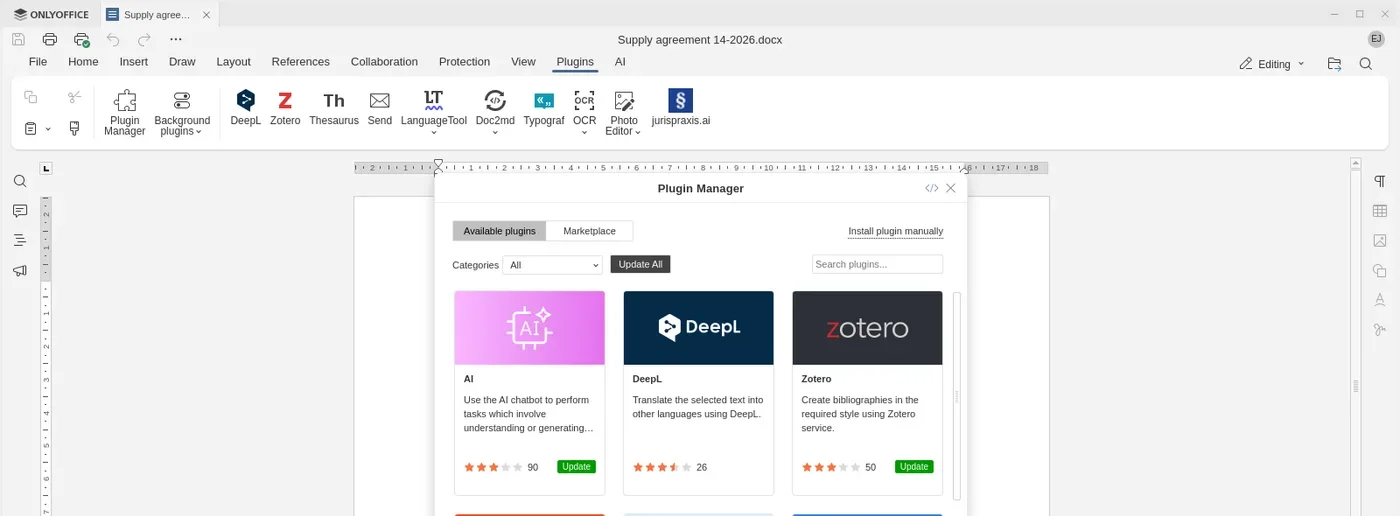
The Plugins tab now has a jurispraxis.ai button, which opens the panel on the right of the document. You install the plugin once: the panel loads from the jurispraxis.ai website and updates by itself. If the panel ever says Download the plugin again, download the file from the same link and install it over the old one through Install plugin manually.
Signing in
You sign in once, and the panel keeps you signed in for this document and the next.
In Word, click Sign in. Word on the web may ask for permission: “jurispraxis.ai wants to display a new window” — click Allow. In the window that opens, sign in as you do on the website. The window closes by itself and the panel shows your email address. If the window does not open, allow pop-ups for Word and click Sign in again.
In ONLYOFFICE, you sign in in your usual browser:
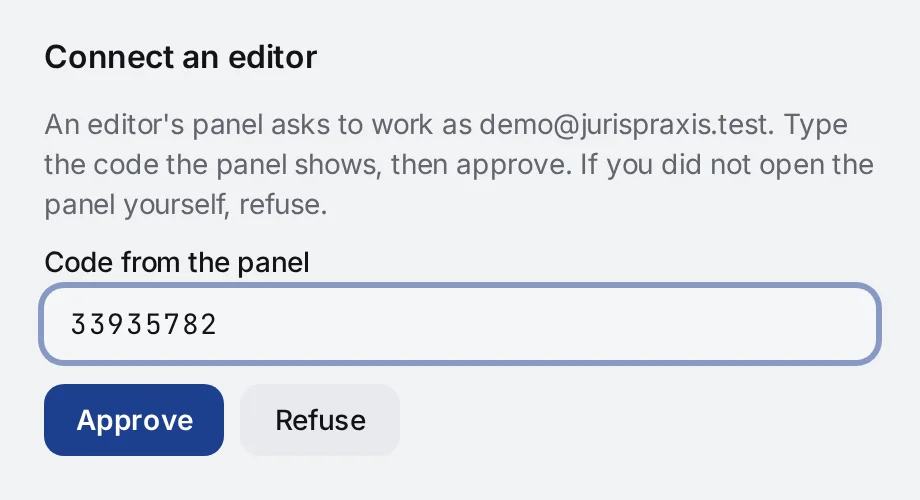
- Click Sign in in the browser. Your browser opens a jurispraxis.ai page, and the panel shows an eight-digit code.
- Sign in on that page if it asks you to.
- On the Connect an editor page, type the code in Code from the panel and click Approve.
The panel notices the approval by itself, so there is nothing to copy back. If you did not open the panel yourself, click Refuse: the editor gets no access to your account. If the page was closed, click Open the page again in the panel. The code lasts ten minutes; after that, start again.
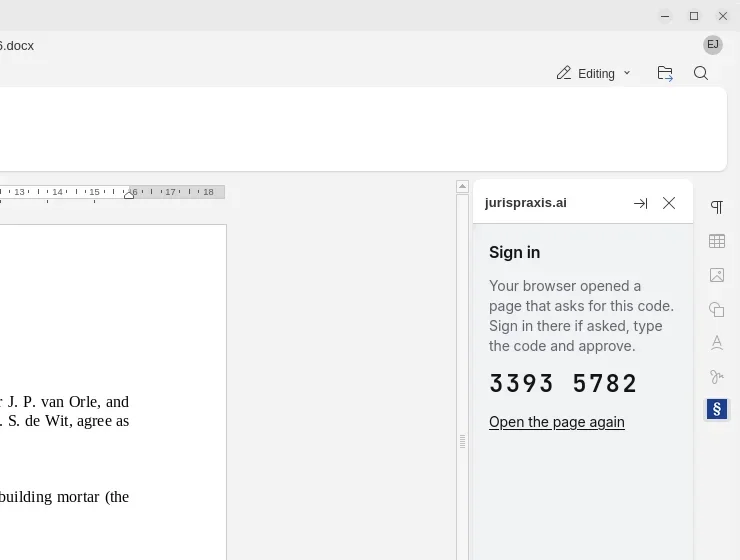
The panel signs in to the firm you are working in in the browser. Sign out in the panel’s header ends the panel’s sign-in only: the browser stays signed in.
If the panel’s sign-in ends, the panel goes back to its Sign in screen by itself. Sign in again, and the panel opens the same chat.
Sending the document
Click Send this document. The document is saved to Uploads and opens as a draft in a new chat. The service searches both the document itself and every case law and legislation source your firm has, so you can ask about the contract and about the law that governs it.
In ONLYOFFICE, sending saves the document first. The panel sends only .docx files: save a new document that was never saved as a .docx file first.
The panel remembers the chat inside the document itself: close the file, open it again, and the panel returns to the same chat.
Files and sources
Under the question box is the same sources chip as in a chat on the website. At first it holds the document you sent and every case law and legislation source your firm has. Press the chip to change where the service searches:
- pick files from Uploads: your own, files colleagues shared with you, or a whole folder;
- turn on Grids and pick them under Cells already read, where your firm has Grids;
- turn a source off, or set its filters.
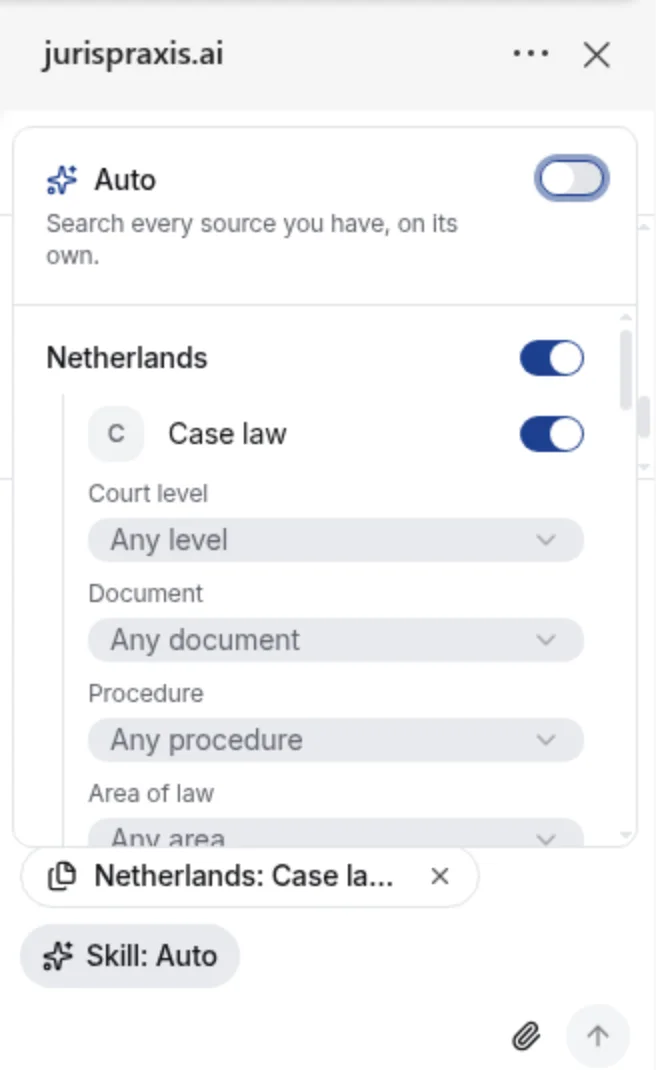
The paperclip, Add a file, next to the send button uploads a file from your computer. Its card shows above the box, and you can send the question once the file is processed. A file that could not be processed leaves the sources, and its card shows the error. Remove a card you do not want with its cross before you send.
Each change is saved at once and holds for every later question. The website shows the same sources when you open the chat there, and the other way round. You can turn off the document you sent too: the service stops searching it, and the answer’s changes still go into the document. If a change cannot be saved, a message at the top of the panel says why, and the chip shows the sources as they were. Such messages, about an upload or a bookmark too, go away after a few seconds, or close them with their cross.
The chat’s author and the firm’s admins can change the sources; everyone else sees the chip but cannot change it. While the service answers or the panel writes changes, the sources stay as they are.
Questions and changes
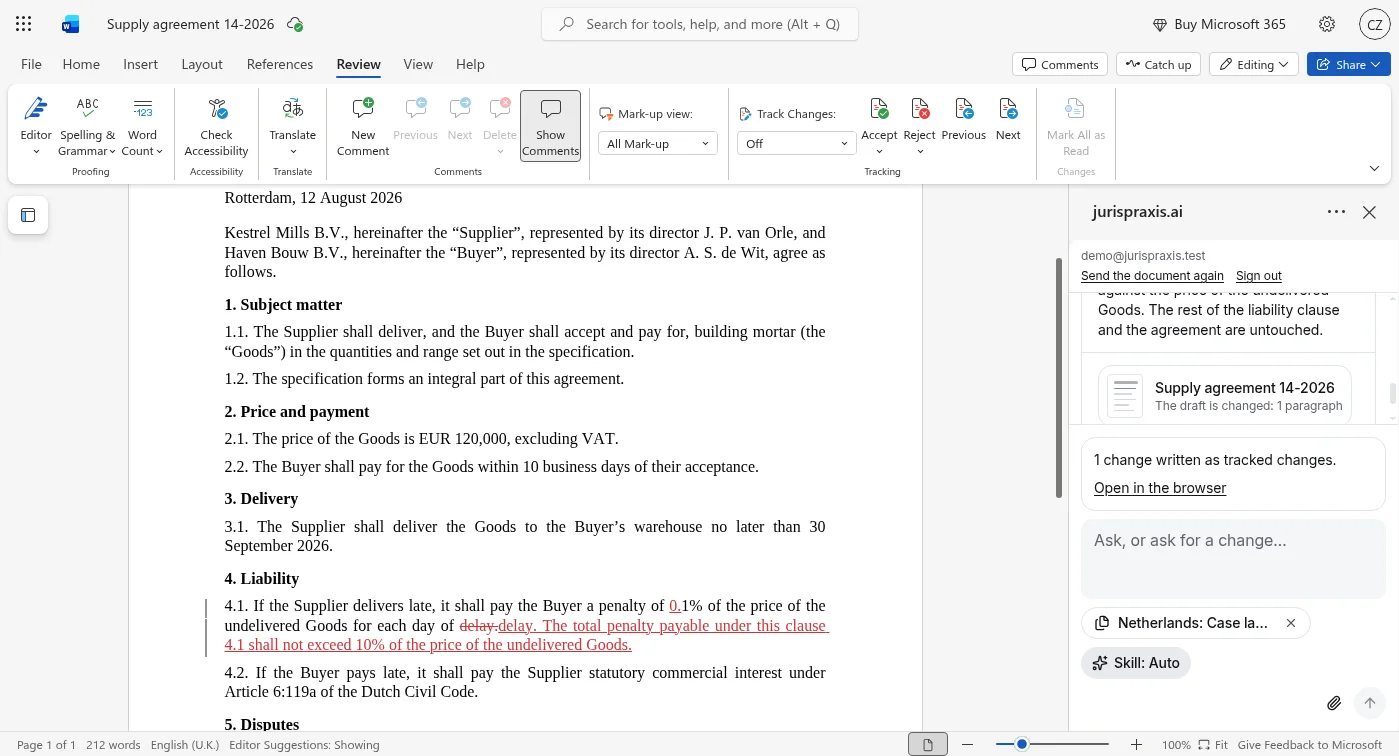
Type a question or a request in Ask, or ask for a change…, for example: “Cut the late-delivery penalty in clause 4.1 to 0.1% per day and cap it at 10% of the price of the undelivered Goods.” Below the box you can pick a skill for this chat. In the panel you only pick a skill: New skill, editing a skill and Make it the default are on the website. An answer uses credits as it does in the browser.
While the service answers, don’t type in the document; the panel reminds you. When the answer changed the draft, the panel writes the changes into the document itself:
- each change goes into its own paragraph as a tracked change, word by word;
- new words take the font and the look of the words they replace;
- a new paragraph takes the look of the paragraph of its kind next to it: body text, a heading or a list item;
- a new table goes in as a tracked change, in the look of the document’s nearest table, and words for an empty cell go into that cell;
- if a change alters a table’s number of columns, the table goes in anew and the old one is removed as a tracked change;
- the editor names its own user as the author of the tracked changes, the same user who edits the document by hand;
- your track-changes setting is put back as it was afterwards;
- comments and the rest of the text stay as they are.
Under the answer you see a line such as 1 change written as tracked changes. Then accept or reject the changes with Word’s or ONLYOFFICE’s own tools.
The panel has no Export button under an answer. To download an answer to Word or copy it, open the same chat on the website. See Exporting a chat to Word.
Click a source number in an answer, such as 1, and the source opens in a sheet over the panel: a decision or a piece of legislation, a file of your firm, the document you sent, or a row of a grid. The sheet scrolls to the passage the answer relies on and marks it, and marks every other passage the answers took from that document. A document in the answer’s list of sources opens in the same sheet. Names hidden from the model stay hidden there, as on the website, and a document in another language can be read in translation. Close the sheet with its cross, with Esc or by clicking outside it, and you are back in the chat where you left it.
In the sheet you can bookmark the document or a passage, report a problem with a source and change a hidden name, as on the website. The case number shows without a link to the court’s page. To open the court’s page of the case, click the arrow button at the top of the sheet, Open in the browser: the website opens this chat on the same document, and on the same passage when you opened it from its number. The Open in the browser link beside the line about the written changes opens this chat on the website too, where you see the comparison of the draft’s editions and the full answer at full width.
The cards under an answer open this chat on the website too. A draft’s card, such as The draft is changed: 1 paragraph, shows the edition that answer left. A grid’s card, The grid is made or The grid has grown, opens that grid.
When a change is not written
The panel never overwrites what you changed yourself. It leaves a change out and names it with the reason when:
- its paragraph no longer holds the words the draft had — for example, you edited the paragraph during the answer;
- its paragraph holds tracked changes not yet accepted or rejected;
- only the look changed, not the words;
- the paragraphs around it were changed, so the panel finds no place for it;
- Word or ONLYOFFICE gave the panel the words of its paragraph in a form it cannot follow;
- Word or ONLYOFFICE refused it.
You can see such changes in the draft on the website: click Open in the browser. If a failure stopped the changes from being written, or no change was written at all, the panel offers Try again. For example, accept or reject the tracked changes in the paragraph, then click Try again. If the last answer changed the draft but its changes never reached the document — for example, the panel was closed during the answer — the panel offers Write the last answer’s changes into the document.
A new chat and signing out
- Send the document again in the panel’s header starts a new chat with the document as it is now.
- If the document’s chat was deleted or you no longer have access to it, the panel says The chat for this document is out of reach. Send the document again.
- Sign out ends the panel’s sign-in. In Word for Windows and Mac, signing in again asks for your password. In Word on the web, if you are already signed in to the website in that browser, one click on Sign in is enough.
A new version and a failed load
- When a new version of the panel is out, a bar under its header says A new version is out. Click Refresh to load it, or close the bar with its cross. While the service answers or the document is being sent, the bar does not show.
- If the panel cannot load your account or the chat, it says The panel did not load. Wait a minute and click Load again.