A draft is a document that the service writes in a chat at your request: a letter of formal notice, a claim, a statement of defence, a contract. It rests on the case law and legislation found in the same chat and on your files. The draft opens in a pane next to the conversation. You can edit it by hand or by a request in the chat, and then download it to Word.
How to get a draft
Choose the way that suits what you start from.
Ask in the chat. Write which document you need and what it must contain: “Draft a notice of default to the supplier for late delivery: contract no. 14/2026, goods worth €120,000, delivered 24 days late.” The service uses the usual structure for such a document. You can also build on an answer you already have: “Draft a statement of defence from the findings of the answer above.”
Follow your own file. Add your sample to the chat: attach it to the message with the paperclip or, if it is already in Uploads, pick it in the Files for the chat window. Then name the file in your request: “Draft the notice in the form of the file ‘Notice template’.” The headings, the fixed wording and the tables of the sample stay in place. The service replaces the names, sums and dates of the earlier matter with the data of yours.
Open your file as a draft. When you must change the document itself — add a clause to a contract, rewrite a section — add the file to the chat in the same way and write what to change: “Add a penalty clause to this contract.” The file opens as a draft without changes: all the words, names, sums and dates stay as in the original. The uploaded file itself does not change.
The service decides from the words of your request whether to follow a file as a sample, open it as it is, or only answer a question about it. So say it plainly: “in the form of this file” or “change this contract”. The file needs no mark for this.
Only your own uploaded document can be a sample or an opened file. A court decision from the case law sources cannot.
Where to find your drafts
Drafts belong to a chat, and one chat can have several. You can open a draft from these places:
- the Drafts button in the chat header, next to Bookmarks. The number on the button is the number of drafts in the chat, and its menu lists them. On a narrow screen, the same list is in the Actions on the chat menu;
- the card under the answer that wrote or changed the draft. It shows the name and, for example, The draft is written: 27 paragraphs. It opens the draft as that answer left it; to edit the text, click Back to the draft;
- the step The draft is written in the steps of the answer, which is a link too;
- the Drafts list on a project page. It holds the drafts of every chat in the project, and each one opens in its own chat.
On a wide screen, the Drafts column of the Chats page shows how many drafts each chat has.
The draft pane
- At the top are the name of the draft and the buttons Editions, Download .docx and Close the draft.
- Below them are the two views, Edit and As in Word, and the formatting bar: bold, italic, underline, body text and headings of three levels, alignment, bulleted and numbered lists, Insert a table, undo and redo. When the cursor is in a table, the same button opens the Table menu: add or delete a row or a column, or delete the table.
- At the foot, on the left, is what you selected: Nothing selected or, for example, 1 paragraph selected. On the right is the saving state.
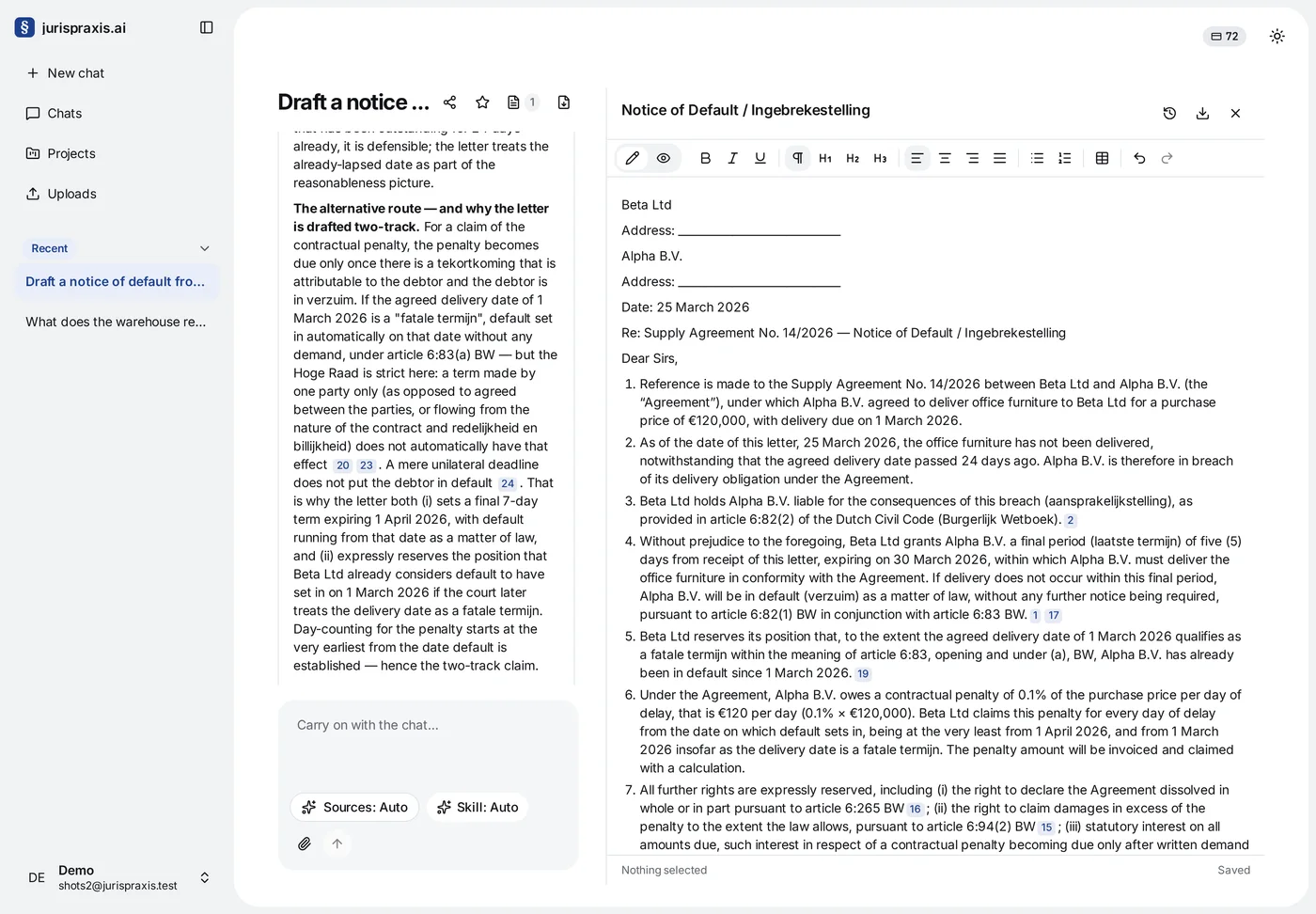
To change the width of the pane, drag its edge.
Editing by hand
Click in the text and edit it as in any text editor. The draft saves itself soon after you stop typing: the foot of the pane shows Saving…, then Saved. Edits that are not saved yet are also saved before you send a message in the chat, and when you close the pane.
If the draft cannot be saved, the foot of the pane shows There are edits not saved. Your edits stay in the pane, and the service tries to save them again at your next edit.
Editing by a request in the chat
While the draft pane is open, your next message applies to the draft. Write what to change: “Make the section on late-payment interest shorter”, “Add a claim for the legal costs”.
To change one place, select its text in the pane. The foot of the pane then shows, for example, 1 paragraph selected, and the question box shows the mark Editing the selection: with the name of the draft. The service changes the selection and does not touch the rest of the text. The cursor alone is not enough: you must select the text. The cross on the mark clears the selection; the open draft still goes with the message.
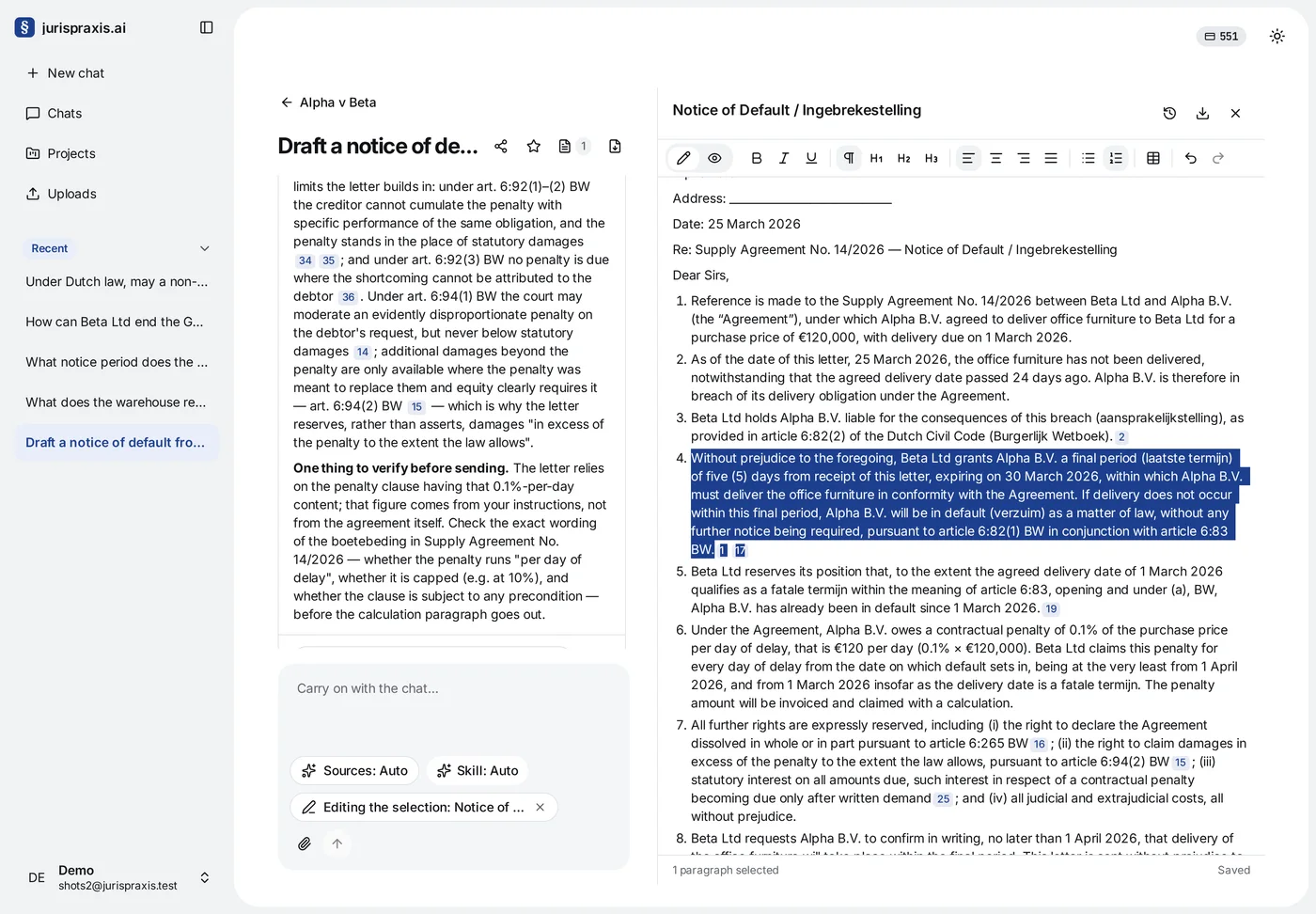
If nothing is selected, the service finds the right places from your words. A request about the whole document, such as renaming a party throughout the text, works too: the service finds and changes each such place. In a long draft it can miss a place, so check the comparison after the answer.
While the service prepares its answer, you cannot edit the draft. When the answer is ready, the step The draft is changed appears in the steps of the answer, and a card under the answer shows the number of changed paragraphs. A click on the step or on the card opens the comparison: the draft before the request and the draft after it. See Draft editions, comparing and download.
If there was nothing to change, the service tells you so, and the draft stays as it was. A question about the text of the draft does not change it either: the service answers in words.
When the pane is closed and nothing is selected, a message does not apply to the draft. But you can name the draft in your words: “In the notice, change the payment term to 5 days.”
Links to sources
A draft rests only on the sources of its chat: the sources found earlier and those the service finds in the same answer. So you can collect the case law first and then ask for the document, or ask for both in one message.
The links in a draft look the same as in an answer: the number of the source. Several sources in a row show as one link, such as 3–5. A click opens it into numbers, one for each source it cites. A click on a number opens the source. The links do not go into the downloaded Word file: it holds only the text of the document.
The service takes the names, sums and dates of your matter from your request, from the conversation and from your files, not from court decisions. Still, check them before you send the document.
Who can edit a draft
Everyone with access to the chat sees its drafts. The owner of the chat, the administrators of the organization and the members picked in the chat’s Access window can edit them. See Access to chats and projects.
Everyone else opens a draft read-only: the foot of the pane shows Read only. They can compare editions and download the draft, but they cannot change it. Their requests in the chat neither change the draft nor write a new one: the answer says that they can read the draft but not edit it.
What happens when two people edit one draft at the same time is in Draft editions, comparing and download.
What it costs
Writing a draft and editing it by a request in the chat are part of an answer in the chat, and you pay for them in credits with the answer. Editing by hand, editions, comparing, the As in Word view, downloading and choosing a style for the download use no credits. See What credits are and how they are spent.