Besides public case law and legislation, jurispraxis.ai works with your own documents: contracts, expert reports, correspondence. Upload them, and the service extracts the text and makes each document ready to read in a chat.
Two ways to upload
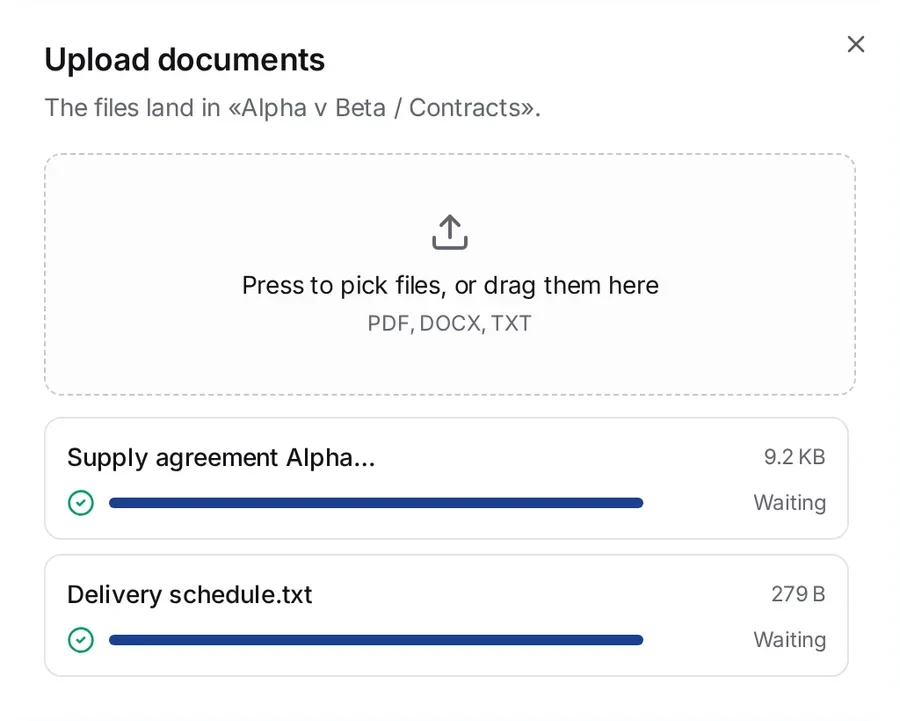
- The Uploads page. Open Uploads in the sidebar and press Upload. The Upload documents window opens with a drop zone. The files go into the folder that is open now. If All files is open, the document goes to No folder.
- The paperclip in the question box. Press the paperclip next to the send button (its tooltip is Add a file). The file is uploaded and at once becomes a source for this chat. See Attaching files to a chat.
On the Uploads page you can also drag files from your computer onto the list or onto a folder in the tree. The upload window then opens by itself.
What you can upload
You can upload PDF, DOCX and TXT files of up to 50 MB each. The service refuses a larger file and tells you why. It also refuses an empty file, one that holds no bytes: its row in the upload window gets the status Failed and the reason The file is empty — it holds no bytes. Check that it opens on your computer, then upload it again. You can pick several documents at once.
Scans and photocopies go through text recognition automatically. It reads Dutch, French, Polish, Estonian, Czech, Slovak, Croatian, Slovenian and English, accented letters included. The result depends on the source: in a faint, skewed or small scan some text can be lost, and tables come out less well than running text.
How the upload goes
In the upload window each file shows its progress: Signing… → the percentage sent → Registering… → Waiting. If a file cannot be sent, it gets the status Failed and the reason.
If you uploaded exactly the same file before, it is not uploaded again. Its row shows Already there and a line that says which folder holds your copy. Upload anyway uploads a second copy.
You can close the window at once: the processing continues without it. When a file is read, a notice tells you so: The file «…» is read. If the service has already checked the file for personal data, the notice also says how much it hides, for example Personal data hidden: 7, and its Show button opens the text of the file with those marks. When there is nothing to hide, the notice says We found no personal data in this file. See What the model sees.
Processing statuses
- In queue — the document is added and waits for its turn; when the service knows how long until it starts, it says Starts in ~4 min. On the free plan about 300 pages a day are processed right away (a scanned page counts as two), and what is uploaded beyond them takes longer: it waits its turn. Hover over the badge or press it, and the service explains. On a paid plan, documents are processed first;
- Being read — the service is extracting the text;
- Read — the document is ready;
- Failed — the text could not be extracted. Hover over the badge to see the reason. A damaged file, or one that was not downloaded completely, gets the reason The file could not be opened: it is damaged or was not downloaded completely. Download it again and upload it once more.
The bar above the file list filters by these statuses. To see the text the service extracted, choose Open the text in the file’s menu.
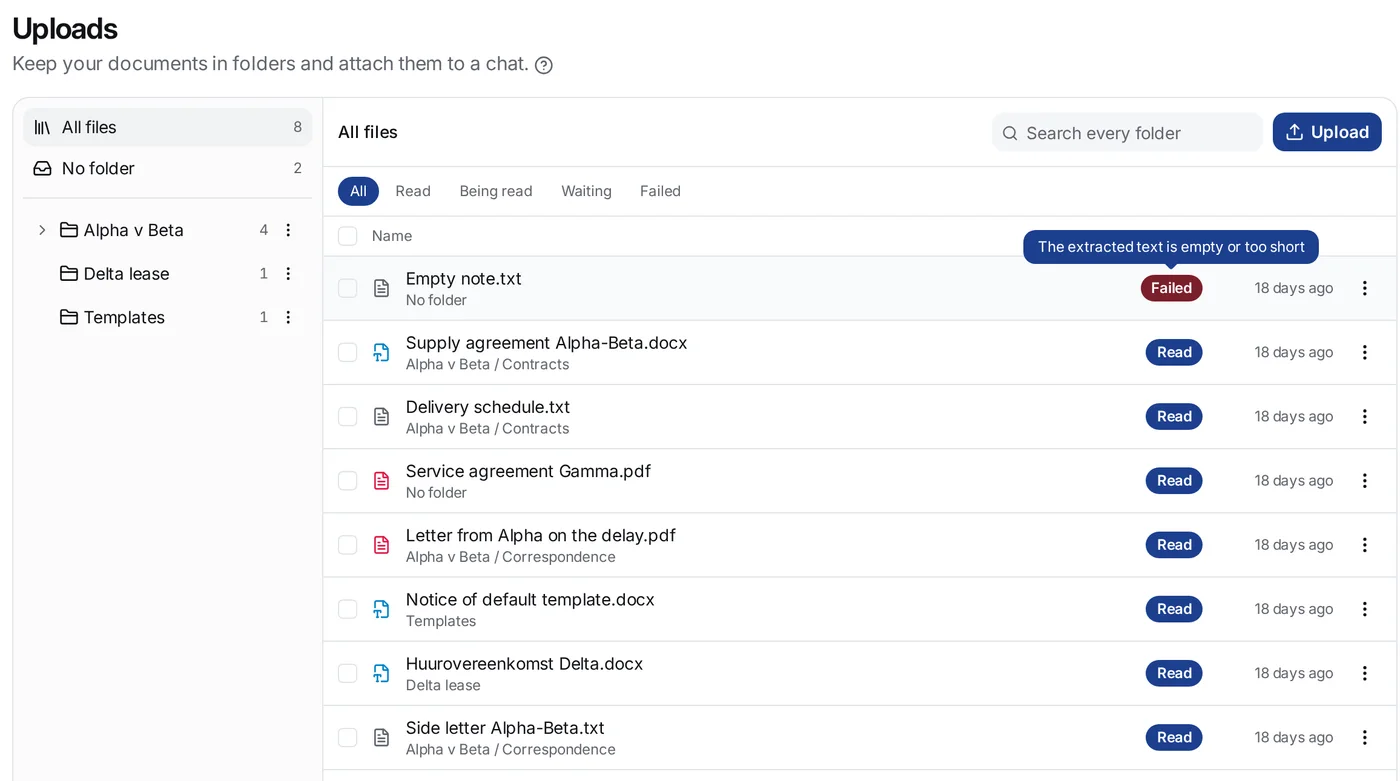
You can attach a document to a chat only when its status is Read: you cannot pick the other files. If you attach a file with the paperclip, the send button stays unavailable until the document is read.
What next
- Put your documents into folders — see Folders: keeping uploads in order.
- Attach them to a chat — see Attaching files to a chat.
Privacy
Your uploaded documents serve only your own work. We do not use them to train AI models. See also Security and your data.