There is one rule: a chat reads exactly the files you picked. It opens nothing else from your library, and it finds nothing there by itself until you pick documents.
The paperclip: attach a file from your computer
The paperclip is in the question box, next to the send button (its tooltip is Add a file). The files you pick:
- go into your Uploads, in No folder, and stay there after the chat. A file you uploaded before is not uploaded again: the chat takes it from your library, and its card shows From your library;
- show as a card above the text box, with the name, the status and a cross that removes the file;
- are added to the sources of the chat. They do not replace them.
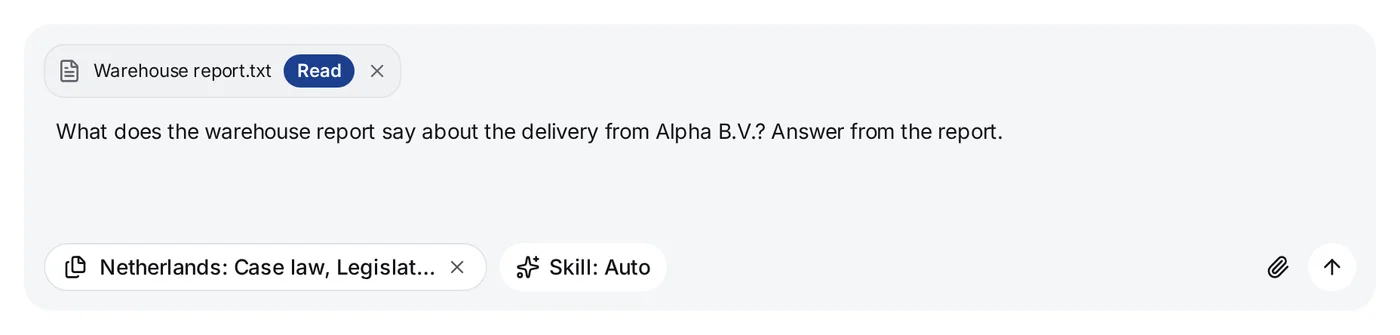
The paperclip turns nothing off. If the chat was on Auto, the scope now holds the public sources and your file: the sources chip lists those sources and ends with Uploads · 1 file. The next question goes to the document and to the case law and legislation together. If you picked the sources yourself, the file joins them, and your filters stay.
While the file is sent and read, the send button waits: a question does not go to a document whose text is not read yet. If the file cannot be read, it leaves the scope by itself. The other sources stay.
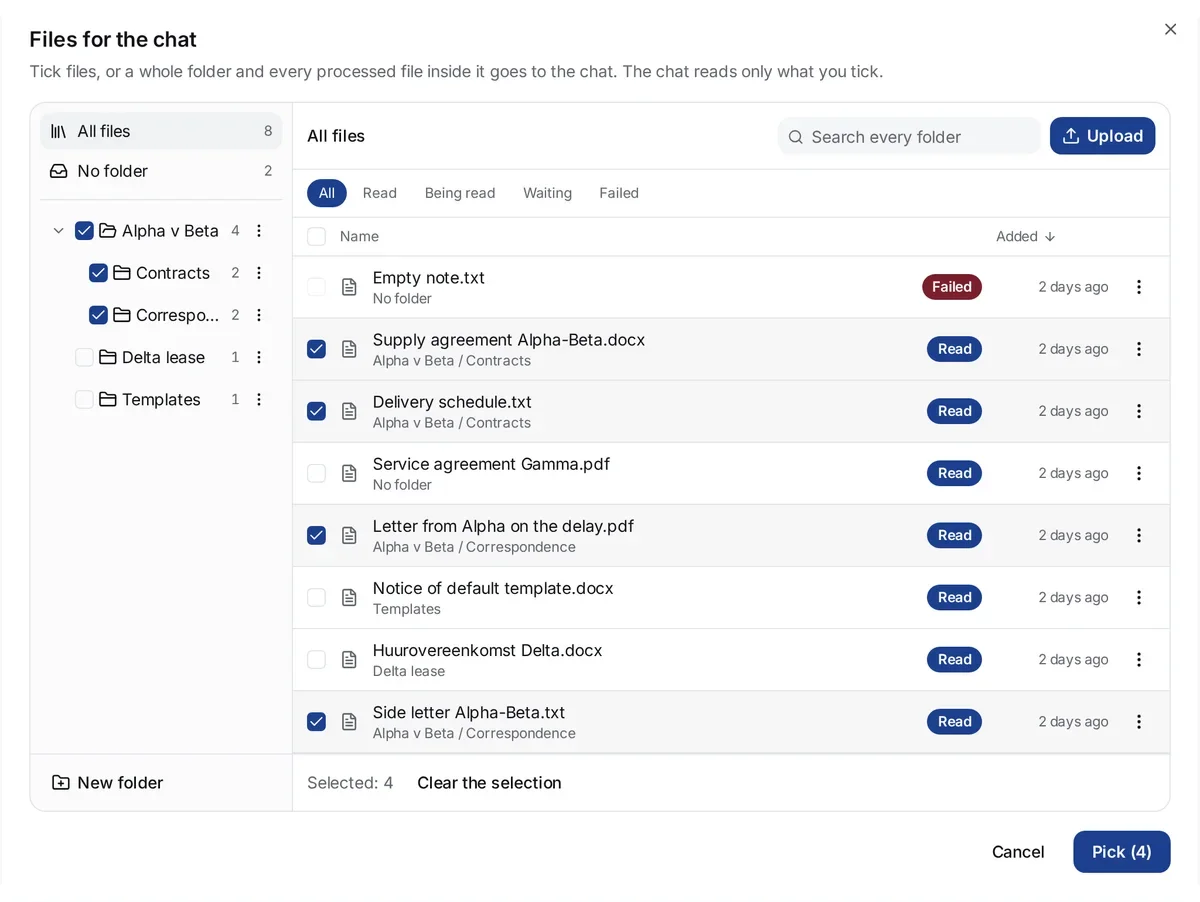
The Files for the chat window: pick from your library
- Under the question box, press the sources chip. By default it shows Sources: Auto.
- Turn off Auto. While it is on, you cannot change the sources.
- Turn on Uploads. The Files for the chat window opens at once.
- Tick the documents and press Pick (N), where N is the number of files. When nothing is ticked, the button shows No files. That button and Cancel leave the source off.
The window is your library, with its folders and its search. A tick on a folder picks every file with the status Read in that folder and in the folders inside it. The list is taken when you tick, so files that you add to the folder later do not go into an earlier chat by themselves. You can pick only documents with the status Read.
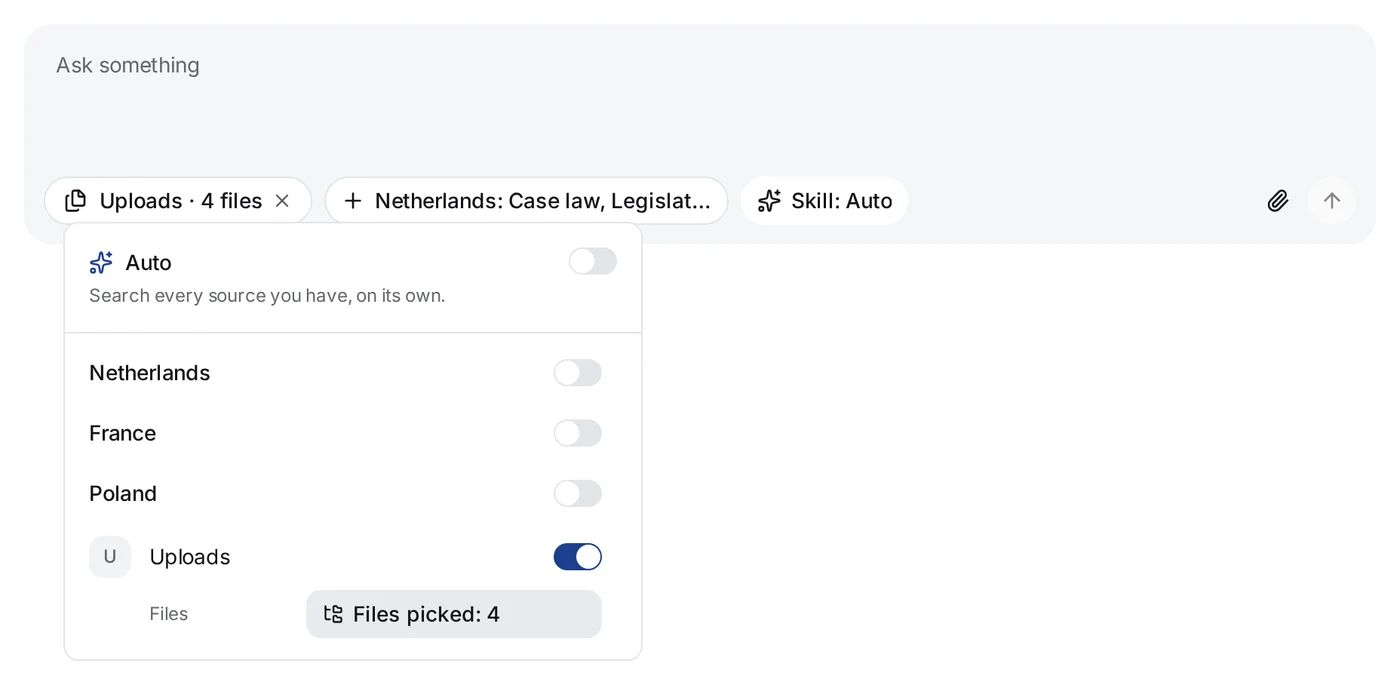
To change the files later, go the same way. The chip then shows, for example, Uploads · 3 files, and the Files picked: 3 button in the Uploads row opens the window again.
Auto does not read your files
With Auto, the service chooses among the public sources by itself: case law, legislation and the other collections it holds. Your documents are not part of that choice. A file goes into a chat only when you pick it — with the paperclip or in the Files for the chat window. Thus a question about one contract does not become a search of your whole library.
The paperclip is also a pick, so after it the chip no longer shows Sources: Auto. It lists the sources that Auto would choose, with the attached file next to them.
Your files and the public sources together
To compare your document with case law and legislation, the service needs both: Uploads with picked files, and the public sources. The paperclip turns on both.
If the chat has only files — you picked them in the Files for the chat window and turned the public sources off — a chip with a plus sign appears next to the sources chip. It names the public sources. One press puts them back into the scope, and the chip goes away. While an answer is being written, you cannot use this chip, or change the sources.
The case law filters work as usual — see Case law filters.
The scope stays
The chat keeps the sources you chose until you change them: the next question goes to the same files and the same sources. If you remove the last file, the other sources stay. The cross on the chip goes back to Auto.
If a file is not in the list
- The document is still being read, or it could not be read. Look at its status in Uploads.
- A colleague uploaded it. Their document appears in your list, under Shared with me, only when the colleague gives you access to the file or to its folder — see Access to your uploaded documents.