You can take the result out of jurispraxis.ai in two ways: download it as a Word document (.docx), or copy it to the clipboard. You can do this for the whole chat or for one answer.
The whole chat
- Open the chat.
- At the top of the chat, press the export button (Export the chat).
- Choose one of these options:
- Word (.docx) — jurispraxis.ai makes the file and downloads it. The file has the same name as the chat.
- Copy — the whole chat goes to the clipboard.
- In the style of a file… — press Pick a file, choose one of your Word files from your uploads, and press Download. The chat is written into that file, and the letterhead, the styles and the headers of the file stay.
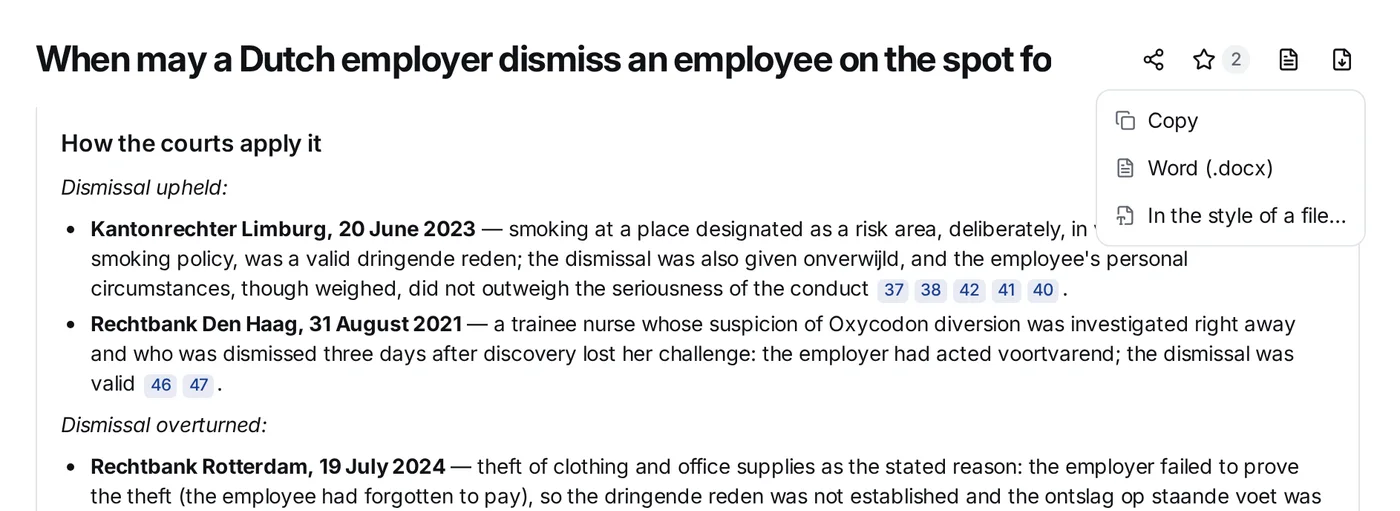
The button is available when the chat has at least one answer. On a narrow screen, it is in the Actions on the chat menu, as Export the chat.
One answer
Below each answer is an Export button:
- Copy — the answer goes to the clipboard with its formatting, so you can paste it directly into Word or an email.
- Word (.docx) — you download a document with this question and its answer. The file name comes from the first words of the answer.
This is useful when you need only one part of a long piece of research for a document in your case.
What the file contains
The document follows the chat in order:
- Question — each of your questions.
- Answer — the answer of the service, with its references
[1],[2]kept in the text. - Sources — below each answer, the list of the documents it used: the name and the quotation that the answer stands on.
A file of the whole chat starts with the name of the chat as its title. The formatting of the answer (headings, lists, tables and emphasis) stays. The file opens in Microsoft Word, Google Docs and LibreOffice Writer.
A file made with Word (.docx) has a fixed layout: Times New Roman at 14 pt, justified text, margins of 30 mm on the left, 15 mm on the right and 20 mm at the top and bottom, and a page number at the bottom of each page. You do not have to set anything. A file made with In the style of a file… takes its layout from the file you picked.
CSV or Word
Export to Word gives you the full conversation of one chat. If you need a list of your chats as a table, use Exporting chats to CSV. It exports the details of the chats you pick, not the conversations.