A draft keeps its earlier states, called editions. For each one you can see what it changed and bring it back. The As in Word view shows the document page by page, as the downloaded file will be. The finished document downloads to Word: in the standard style of the service or in the style of your own file.
Editions
The Editions button at the top of the draft pane opens the list of editions, the newest first. Each edition has a number and a line that says why and when it was kept.
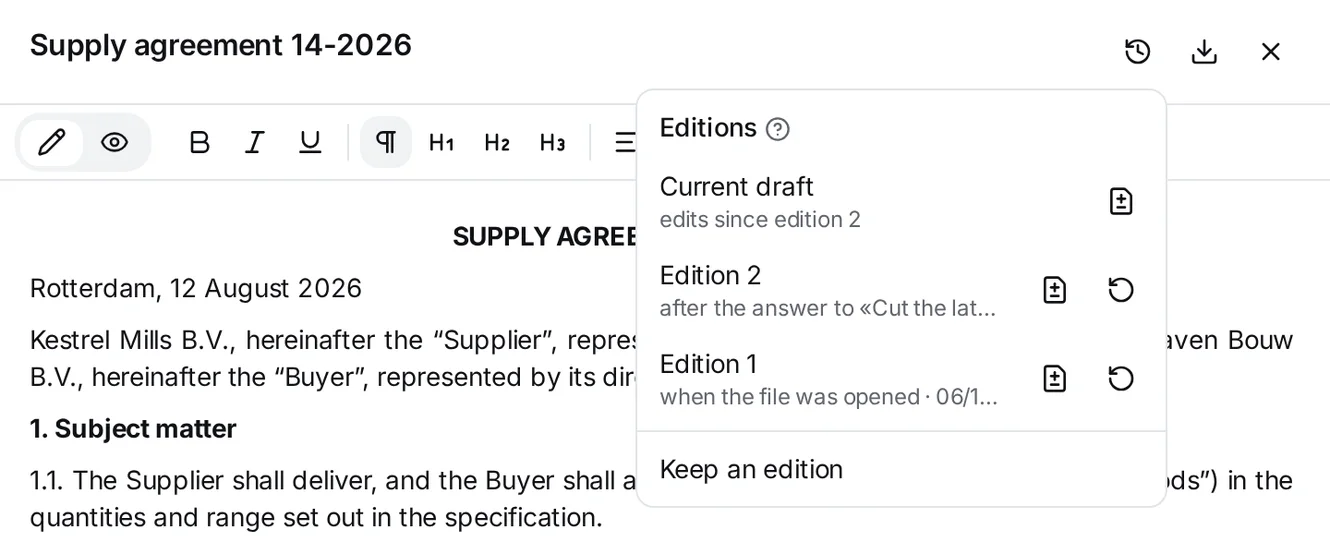
The service keeps editions by itself:
- before the edit for «…» and after the answer to «…» — when the service changes the draft at your request in the chat. The quotation marks hold the words of that request. One answer leaves one edition of its result, however many edits it made. A draft the service writes gets edition 1, marked after the answer to «…», at once;
- on download — when you download the file;
- when the file was opened — when your file is opened as a draft. This edition is how the file looked at first;
- before being replaced by your version — when you chose Keep mine (see below);
- after a restore — when you brought an earlier edition back: this edition is the text that came back (see below).
Your edits by hand are saved automatically, but they make no edition. To keep the current text, choose Keep an edition at the foot of the menu: an edition marked by hand appears.
If the latest edition already holds the current text, no new edition is made: a second copy of the same text adds nothing. In that case Keep an edition is unavailable.
The history is one line: editions are only added. None is deleted, and none branches off.
Comparing editions
The icon next to an edition is Show what this edition changed. The pane then shows the whole document and marks what changed in this edition since the one before it: deleted text is struck through and marked in red, and added text is marked in green. The first edition shows by itself, with no marks.
If the draft was edited by hand after the latest edition, the top row of the menu is Current draft, marked edits since edition N. Its icon, Show the edits since the last edition, shows those edits.
At the top of the comparison you see:
- what is compared with what, for example Edition 1 → Edition 2, or Edition 1 alone when an edition shows by itself;
- why and when the edition on the right was kept. If an answer in the chat kept it, this line takes you to that answer. For the current draft the line is edits by hand · not yet kept as an edition;
- Back to the draft, which closes the comparison;
- Restore edition 2, which brings back the edition on the right. When the right side is the current draft, or an edition that holds the same text, this link is not there;
- the arrows Previous change and Next change, and a counter such as change 1 of 2, to move between the edited places.
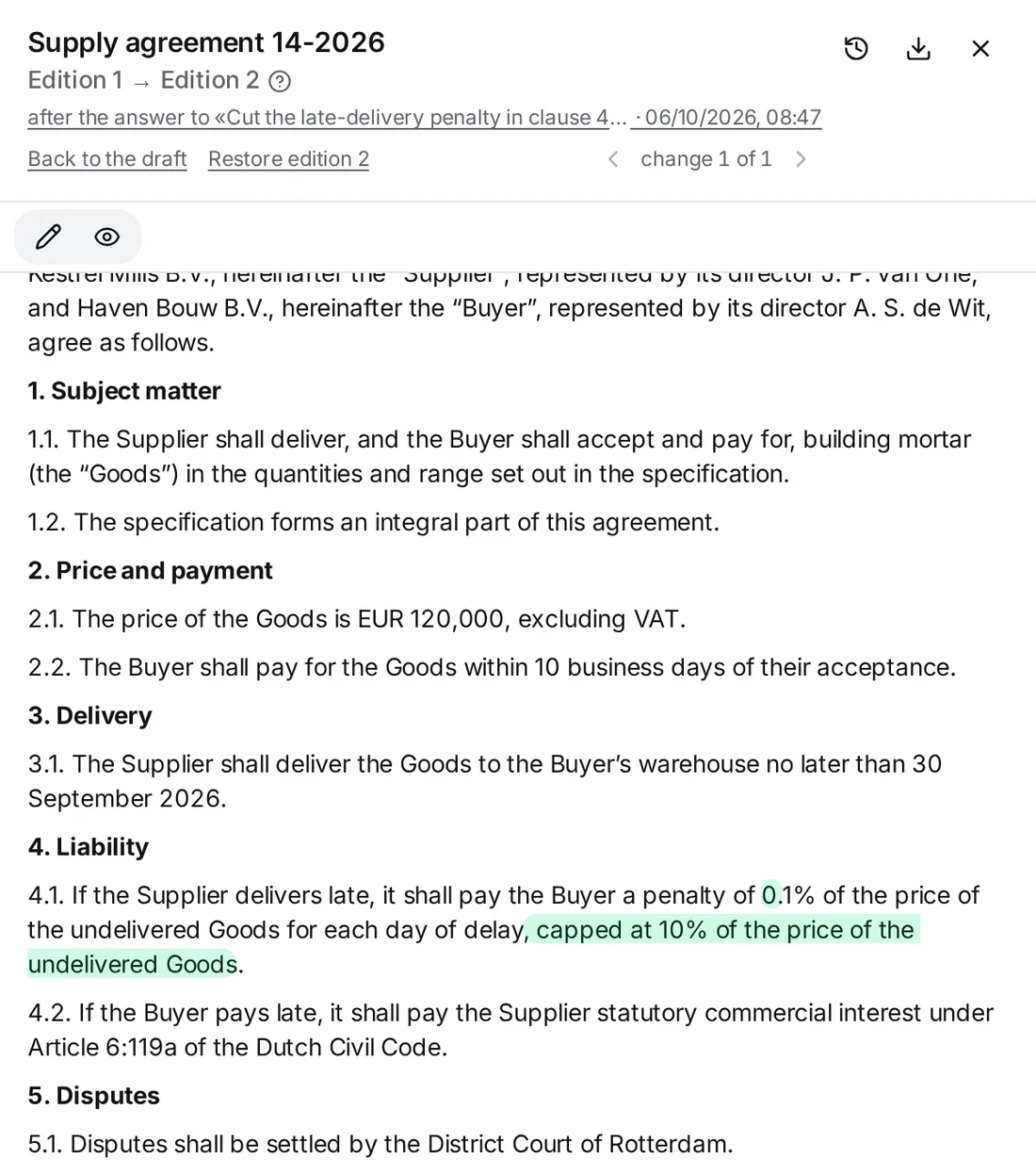
A click on the card under an answer, or on its step, opens the edition that answer left. After an edit by a request in the chat, that is the comparison before and after the answer, for example Edition 1 → Edition 2. If the answer wrote the draft or opened your file as a draft, the pane shows that edition by itself, even when the draft has changed since.
Restoring an edition
The Restore icon next to an edition (or Restore edition N in the comparison) puts the text of that edition back into the draft. First, the current text is kept as an edition marked by hand. So a restore loses nothing: you can go back to the earlier text in the same way. The text that came back becomes a new edition marked after a restore.
The As in Word view
Below the top of the draft pane are two icons. The pencil is Edit: the normal view, where you edit the draft. The eye is As in Word: the draft as the downloaded Word file would be at this moment.
In this view the draft is laid out in pages, as in Word, and shown in its current style: the letterhead, headings, numbering, tables, margins and page numbers. If no style is chosen, the draft shows in the standard style of the service. If a font of the file is not on your computer, a font with the same character widths replaces it, so the lines break as they do in Word. A long draft shows its first pages at once, and the rest appear while you read.
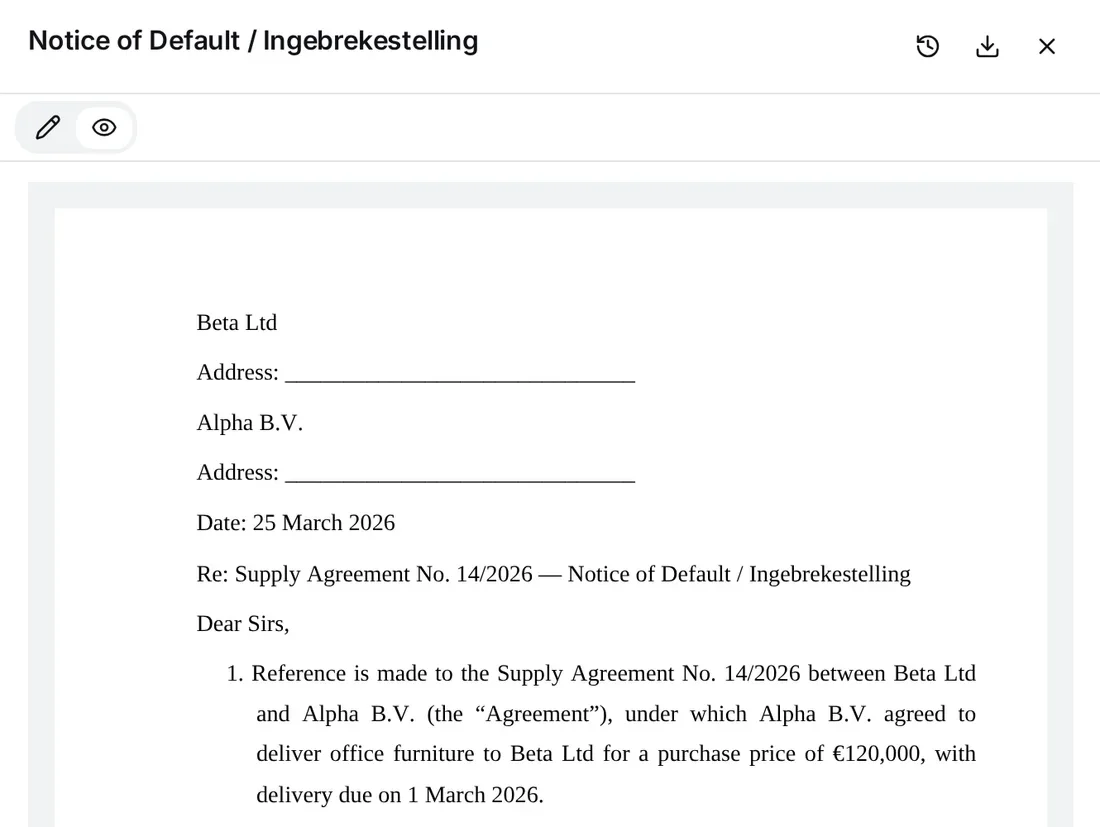
- The view is read-only. To edit the text, go back to Edit.
- Before the view is shown, your edits that are not saved yet are saved.
- The view makes no edition and uses no credits. Everyone who can read the draft can open it.
- If you download the draft in another style, the view shows the new style at once.
- The comparison and the view do not show together: when you compare editions, the view closes.
If the draft changes after the view was made (for example, an answer in the chat or a colleague changed it), the view stays as it was and shows The draft changed after this view was made. Press Refresh to see the current text.
Downloading to Word
The Download .docx button at the top of the pane opens the download panel. There you choose the style and, when a comparison is open, whether the file shows the changes. Only the Download button at the foot of the panel downloads the file. Until you press it, your choice changes nothing, and a closed panel downloads nothing and changes nothing. The file has the name of the draft.
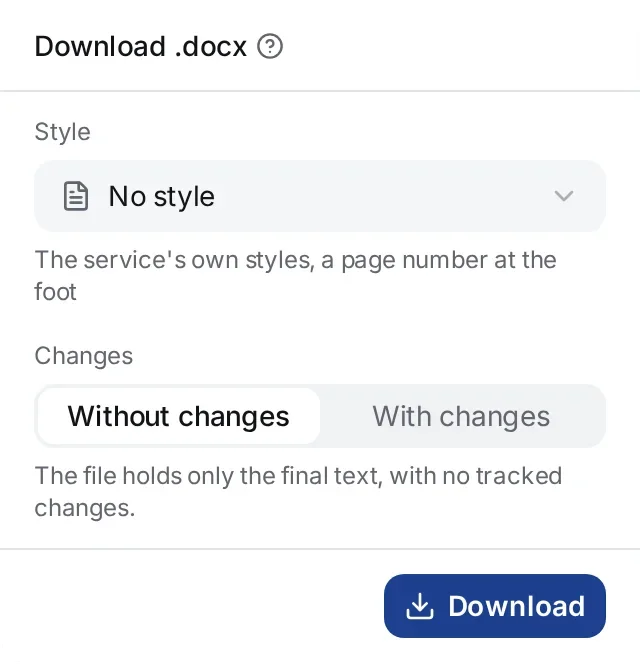
The Style field already holds the current style of the draft. Its list gives:
- No style — the standard style of the service: Times New Roman, 14 pt, margins of 30 mm on the left, 15 mm on the right and 20 mm at the top and bottom, and a page number at the foot of each page.
- the name of a Word file — the style of that file: its styles, letterhead, headers and footers, list numbering and table look. A draft written in the form of a .docx sample takes the style of the sample at once.
- Another Word file… — pick a file from your library. The The style of the draft window shows only Word files, because a style comes only from a .docx. The file you pick goes into the Style field, and the download panel opens again.
If you changed the style, Download first keeps the new style on the draft and then downloads the file. The new style stays for the next downloads and for the As in Word view. It changes only how the file looks: the text of the draft stays the same. If the text must fit another document, ask for that in the chat. You can also change the style by a request in the chat: “Style the notice like the file ‘Letterhead.docx’.” If the style cannot be applied, the message The style could not be applied: gives the reason. The file does not download, and the draft keeps its earlier style. When a request in the chat leaves the style as it was, for example because the file is not a Word file, the step of the answer shows The style did not change.
If the draft was opened from your Word file, that file is in the Style list, and below the field is the hint The changes go into this file, and the rest of it stays as it was. In this style you download a copy of the original file with your edits written into it. The uploaded file in your library does not change. The file stays in the list even when you choose another style.
A PDF gives no style. A draft written in the form of a PDF, or opened from a PDF, downloads with No style or in the style of the Word file you pick.
If a comparison is open, the panel has the Changes choice: Without changes or With changes. The panel always opens on Without changes, and a line below the choice says what the file will hold. With With changes, the file holds the right side of the comparison: the current draft or, in the comparison Edition 1 → Edition 2, edition 2. Everything that changed after the left edition is written into the file as Word tracked changes, in the name of the person who downloads it. If you accept all the changes, you get the right side; if you reject all of them, you get the left side. The tracked changes are written in every style, also into the copy of an opened Word file. This kind of download keeps an on download edition only when the right side of the comparison is the current draft. When no comparison is open, there is no Changes choice, and the file has no tracked changes. Nor is there one when an edition shows by itself, such as Edition 1 alone: there is nothing to compare it with.
The downloaded file has no links to sources, only the text of the document. The links stay in the draft pane and in the chat.
Only a person who can edit the draft can change its style. For everyone else the Style field is locked, and below it is the line Only someone who may edit the draft changes its style. They download the draft in its current style.
The {{answer}} marker: the logo and the address stay
Without a marker, a draft takes only the style of a Word file: its styles, the letterhead in its headers and footers, its list numbering and its table look. The text of the file does not go into the download, and the images in that text go with it — a logo, for example, when it stands in the text and not in a header. When the text of the file you pick holds images, the hint The images in the file’s text will not reach the download shows below the Style field, with how to keep them.
To keep the file whole, type the marker {{answer}} in it, on a line of its own. The draft goes in the place of the marker, and everything around it stays as it was: the logo, the address, the signature, the stamp. The words of the other languages of the service, {{antwoord}}, {{réponse}} and {{odpowiedź}}, work the same way, whatever the language of the screen of the person who downloads.
- One {{answer}} line — the draft goes on that line. Format the {{answer}} line as the text must look: the whole draft takes its font, size, indents, spacing and alignment. Headings take the same look in bold, a list gets its number or “•” typed at the start of the line, and a table spans the width of the text with thin borders.
- Two {{answer}} lines — everything between them is a sample. Write a paragraph of text, a heading, a list and a table with borders there, as they must look. The draft replaces both lines and the sample, and each part of the draft takes the look of the same part of the sample. A part the sample does not have takes the look of the sample’s text: a heading, for example, becomes bold text. When nothing stands between the two lines, the first {{answer}} line gives the draft its look.
The draft takes its look only from the marker lines and the sample between them, not from the rest of the text of the file. The marker is found only in the text of the file, not in its headers and footers.
When the markers stand wrongly, the style is not applied: a message gives the reason, and the draft keeps its earlier style. That happens when:
- the file holds more than two {{answer}} markers;
- a marker’s line holds other text;
- the two markers stand in different places: one in the text and the other in a table, or in two different table cells.
If such a file is already the style of a draft, for example because the draft was written in its form, the file downloads as if it had no markers.
When two people edit at once
If a colleague saved the draft while you were editing it, your edits are not lost. The foot of the pane shows the message Somebody else changed the draft while you were editing it. Your edits are untouched: choose whose version stays. Until you choose, you cannot edit the draft.
- Keep mine — your text replaces the saved text. The colleague’s text is not lost: it stays as the edition before being replaced by your version.
- Take the new one — the pane shows the colleague’s version, and your edits that were not saved are dropped.
An edit by a request in the chat does not overwrite another person’s text either. The service changes the places that the colleague did not touch as usual. But if the colleague changed the same place that the service is editing, the edit is not applied: the service reads the draft again, or answers without a change.