Research is a conversation, not a single query. You can ask follow-up questions and keep the context, and you can keep the documents and quotations you need in bookmarks inside the chat.
Carrying on the research
To go further into the subject, type the next question in the Carry on with the chat… field at the bottom of the chat. The service takes the earlier messages into account, so you can ask follow-up questions:
- “What does the court of cassation say on this point?”
- “Find decisions from 2024–2026.”
- “Set out a short legal position for the appeal.”
You can send the next question while an answer is still being written. The question waits and goes after the answer. To take it back, press It goes after the answer — cancel.
When a chat becomes long
The model reads the whole conversation of a chat, but there is a limit to how much it can read. When a chat fills a good part of it, a ring shows next to the send button. The ring shows how full the model’s context is. Point at the ring or press it, and a hint shows, for example 60% full. Near the limit, the ring changes colour.
At 100%, the model swaps its older answers for short summaries to make room. This happens on its own, and you do not need to do anything. Your questions, files and drafts stay word for word, and you still see the older answers in the chat.
While the summaries are made, the ring turns and the hint says Summarising older answers…. A question you send then waits, and then runs.
After that, a line shows in the chat: “Above: the model reads the answers to questions 1–N through summaries. Your questions, files and drafts stay as they were.” Next to it, Read the summaries opens the panel What the model keeps of the answers to questions 1–N, with the summaries oldest first. You can only read the panel.
Renaming
A new chat gets its name from the start of your first question. To rename it, press the name at the top of the chat, type the new name and press Enter. Esc cancels. Only the author of the chat, or an owner or administrator of the organization, can rename it.
Bookmarks
Each chat has its Bookmarks: the star button at the top of the chat, with the number of saved items. The bookmarks keep the important documents and quotations of this chat.
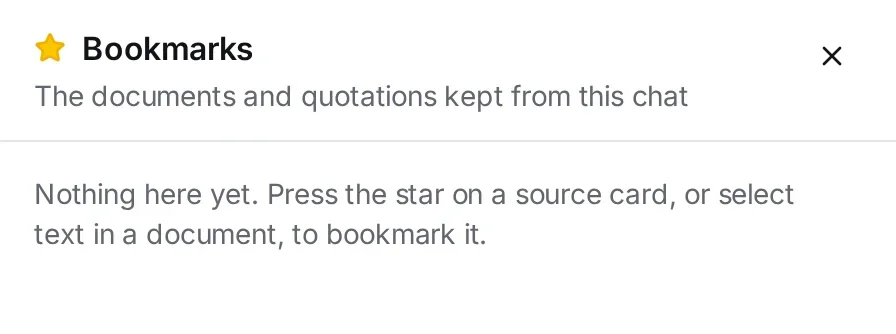
To add a bookmark:
- for a document, press the star in the header of the source pane (Bookmark the document);
- for a quotation, press the star next to the highlighted passage (Bookmark the quotation);
- for any other passage, select the text in the document and press Bookmark.
When you open the Bookmarks panel, you see:
- Documents — with links that open each source quickly;
- Quotations — the saved passages, with their text and the name of the document. A passage that you highlighted by hand has a small bookmark mark.
To remove an item, press its star again, or press the cross next to it in the panel (Take out of the bookmarks). If the bookmark has notes, jurispraxis.ai asks you to confirm, because the notes are deleted with it.
Notes on bookmarks
You can add your own note to any bookmark, for a document or a quotation. Below the bookmark, press Add a note. Type the text in the A note on the bookmark window and press Save. The note shows below the bookmark with your name and the date. To change the note, press its text. To delete it, clear the field and save.
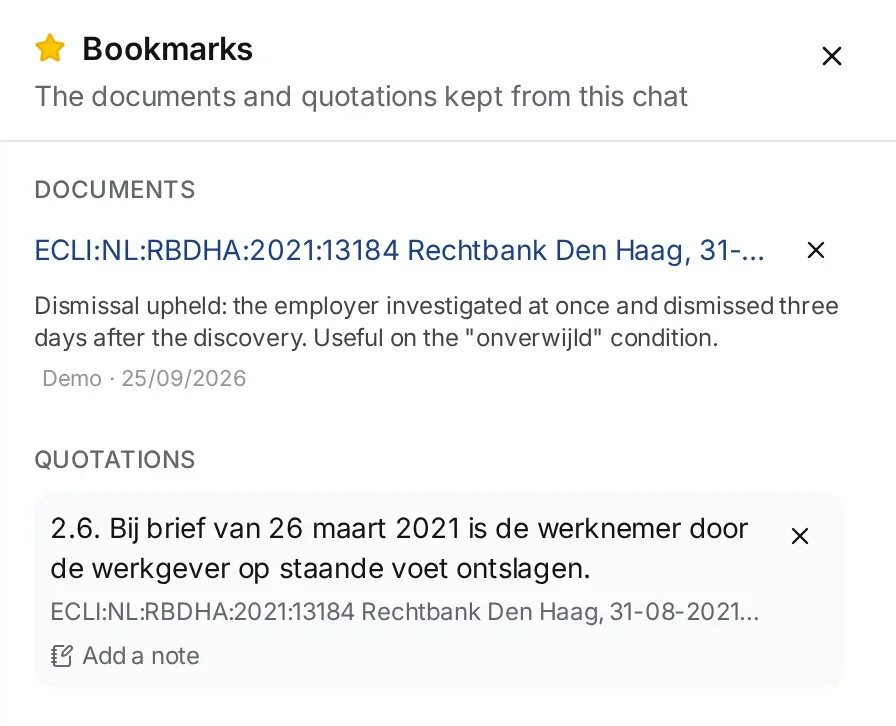
Notes are personal: each member has their own note on the same bookmark. In a shared chat, you see your note and, next to it, the notes of your colleagues with their names. You can edit only your own note. Thus the whole team works with one set of bookmarks, and nobody overwrites the notes of another person.
Coming back to the work
All your chats are in Chats, with the most recent activity first. There you can search and filter them: see The Chats page and CSV export. To keep related chats together, put them in a project.