You can get the same question back in different forms: as a memorandum for the client, as a position for the court, or as a clause-by-clause review of a contract. A skill controls this. A skill is a saved set of instructions for how the work is done.
A skill sets the form of the answer: the sections and their order, the length, the register and the audience. If necessary, it also sets the order of the work: what must be attached before the work starts, which steps to take and which case law to use. The chat keeps the skill you choose, and the skill applies to each answer in the chat until you change it.
Where to choose a skill
In the question row, next to the sources, is the skill button. Until you choose a skill, the button shows Skill: Auto: a skill applies to an answer when it suits the question. When you choose a skill yourself, the button shows its name, and only that skill applies. You choose the sources separately, and they do not depend on the skill.

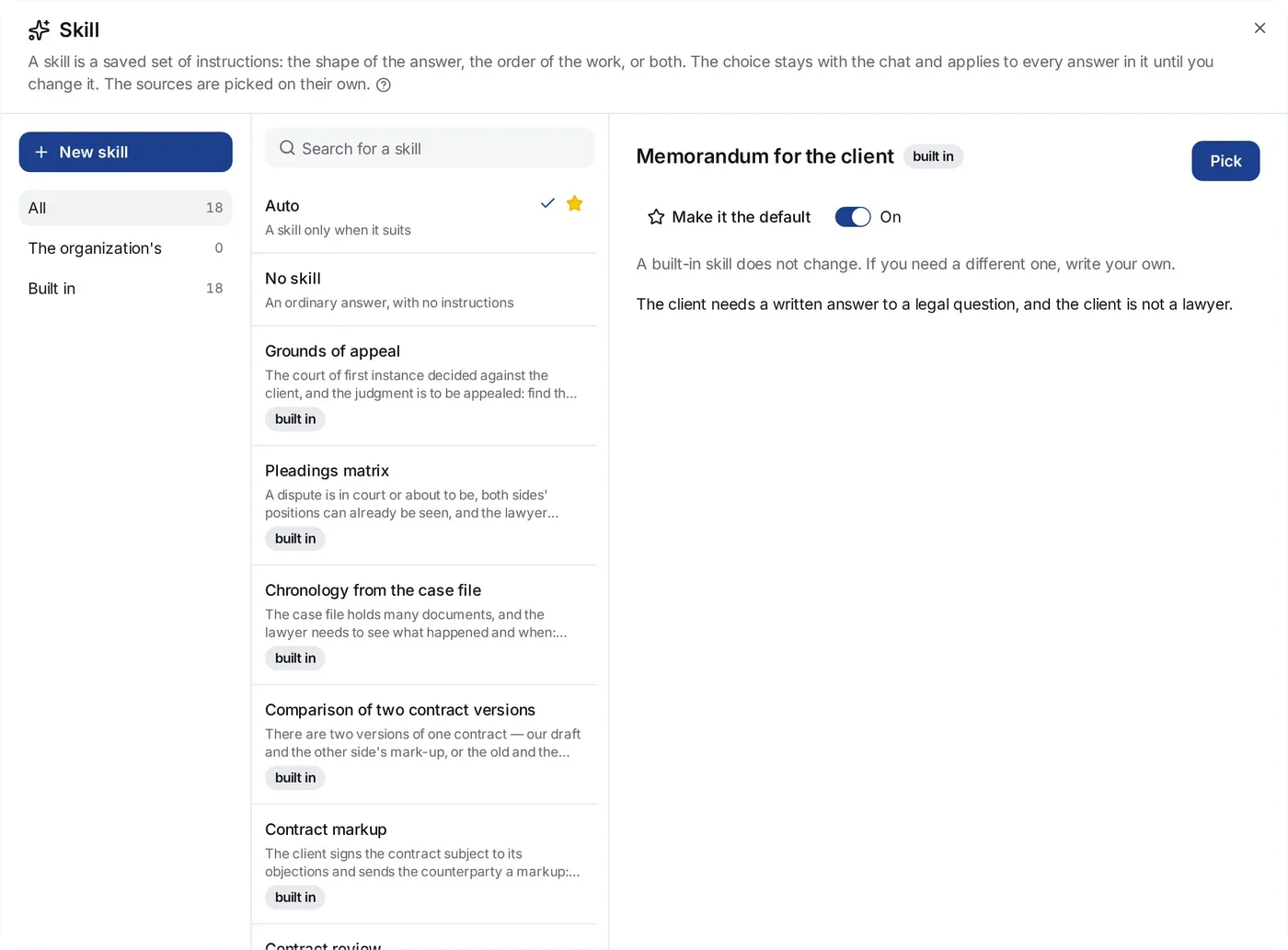
The button opens the Skill window with a list and these filters:
- All — all the skills your organization can use.
- The organization’s — the skills that you or your colleagues made. Only your organization sees them.
- Built in — the ready-made skills of the service. They are available to all and do not change.
If your organization has skills that are off, a fourth filter shows: Off. Only a person who can turn a skill on again sees this filter. For all other persons, a skill that is off is not in the list.
The first two rows of the list are Auto and No skill. Auto is how the service works until you choose a skill: if the work you ask for matches one of the skills, that skill applies to this answer, and the answer shows its name. No skill gives an ordinary answer in the chat, without instructions and without matching. When this row is chosen, the button in the question row shows only Skill.
Select a skill in the list to open its card. The card of a built-in skill shows its description; the card of an organization’s skill shows the description and the full text of the instructions. The Pick button at the top right sets the skill. In the list, a tick shows the chosen skill and a star shows the default skill. The search field finds a skill by its name or description, and an organization’s skill by its instructions too.
The built-in skills
| Skill | What it does |
|---|---|
| Contract markup | A table for a contract that the other party sent to your client: the clause in the counterparty’s wording, word for word; our wording as finished clause text; the ground in a rule or in case law. The contract must be attached. The first line names the side for which the markup is made. It is meant only for when you ask for a markup in so many words. |
| Contract review | Reviews a contract that your client must sign, for your side: each point is about one clause, with its risk, its ground and a proposal in finished wording. The last section lists what the contract is missing. The contract must be attached. The first line names the side for which the review is made. |
| Check against the firm’s positions | Checks a contract that the other party sent against your firm’s positions: for each term, the finding accept, negotiate or reject, the clause word for word, and our wording as finished clause text, with the fallback wording where there is a fallback. The skill takes the firm’s positions — our position, the fallback and what the firm never accepts — from the question or from an attached file. If the firm wants its positions stored in the skill itself, create an organization’s skill and write them into its instructions. |
| Position for the court | A connected procedural text: rule → application to the facts → interim conclusion. The arguments go from the strongest to the weakest, then the objections of the other side are answered, and a short closing proposition ends the text. |
| Memorandum for the client | The sections “Question”, “Rule”, “Practice” and “Conclusion”. Everyday words with no legal phrasing, and a term it cannot do without is explained when it first appears. For a client who is not a lawyer. |
| Case-law review: for and against | An analytical note: the legal construction, the cases where the claim succeeded and the cases where it failed in separate sections, a table of the criteria that separated the outcomes, and what they mean for your situation. |
| Pleadings matrix | One table for a dispute: for each issue, our argument, the other side’s argument in its strongest form, the evidence for each, the case law marked “for us” or “against us”, and an assessment. The first line names the side the arguments are for. |
| Demand letter | A demand to the party that broke an obligation, ready to send once you fill in the fields: the facts with their documents, the legal ground, the demand with its calculation and time limit, the consequences and the annexes. Under it, a note for the lawyer: the fields to fill in, how to send it, what to check. |
| Case note on a judgment | A judgment in a minute: the court and what became of the judgment, the facts, the issue, the decision with the main finding quoted, the reasoning. Where your case is known: whether the judgment is for or against you, which facts are the same and which differ. |
| Case prospects and settlement | Three scenarios — the most likely, the best and the worst for your client — each with what it depends on, its likelihood, the money and the time; then the range and the terms for a settlement, and a recommendation: litigate or settle. The first line names the side the assessment is for. |
| Evidence review | A table of the facts your position rests on: who must prove each, the evidence for you and against you, and whether it is proved, partly proved or not proved. Below it, what to obtain for each gap and who holds it. The first line names the side. |
| Comparison of two contract versions | One row for each change of substance between two versions of a contract: the old and the new wording word for word, what the change means for your side, and its weight. Changes of form get one line under the table. Both versions must be attached. |
| Statement of claim | The claim that starts a case: the facts with their documents, each head of claim with the contract term or rule of law it rests on, a calculation table that ends in the value of the claim, the step taken before court, the relief sought and the annexes. Before it writes, it checks the demand, limitation, the defendant and the court. A fact only the client states is written as the client’s account and named in the note. Under it, a note for the lawyer: the defendant’s likely objections and the documents still missing. The documents the claim rests on must be attached. |
| Defence to a claim | The defendant’s defence for the court file: procedural objections, an objection to each head of claim with its rule, a counter-calculation that is not an admission, applications such as limitation or reducing a penalty, and the relief sought. Under it, a note for the lawyer. The claim must be attached. |
| Grounds of appeal | An appeal against a first-instance judgment. For each error of the court: its finding quoted, why it is wrong on the case materials and the law, and the kind of error; the grounds go from the strongest to the weakest. Under it, a note for the lawyer with the time limit for appealing. The reasoned judgment must be attached. |
| Reply to a demand letter | An answer to each demand in a letter your client received: «admitted», «admitted in part» or «not admitted», with the reason, the contract term and the rule, and what the client will do by when. Where the client has not said what to admit, the first line says the position must be agreed with the client. The demand letter must be attached. |
| Chronology from the case file | A table of the events in the attached documents in date order: what happened, who did it and which document records it; an event only one side reports is marked as its version. Below it, the discrepancies between documents, the gaps and what to request. It searches for no rules or case law. |
| Hearing preparation | What the court will decide at the hearing and what to do before it, the questions the court is likely to ask with short answers, the weak points of your position and your answers to them, the speech as points under «Strong», «Medium» and «Weak», and what to bring. The first line names the side and the hearing. |
A built-in skill does not change and cannot be copied. If you need a different one, write your own, from scratch or from a description, as shown below.
The chat keeps the skill
The skill you choose in the question row stays with the chat that your first question makes, and it applies to each answer in that chat.
In an open chat, the same button in the question row shows the skill. Press it to choose a different skill or to remove the skill. The new choice applies from the next answer. The answers that are already written do not change. The persons who manage the chat can change its skill: the author of the chat, and an owner or administrator of the organization. For all other persons, the skill shows as a label that they cannot change.
While the service prepares an answer, the skill button is not available. You can change the skill when the current answer is ready.
A skill for one answer
A skill helps only when somebody remembers to choose it, and people do not always remember. Thus, while the button shows Skill: Auto, the service first looks for the skills that fit the question: it compares the question with the name and the description of each skill. If needed, it searches again in its own words, and then the steps show Looking for a skill and Skills found: …. Then the service reads the question together with the attached documents and the conversation. If the question asks for work that a skill covers, the service takes that skill itself. The answer then shows the name of the skill, and the steps show The skill «…» shapes this answer.
Such a skill applies to one answer only. The button stays on Auto, and the service examines the next question again. To set a skill for the whole chat, choose it on the button yourself.
Your choice comes first. When you choose a skill on the button, the service stops choosing skills itself. The skill you chose applies until you change it.
The service does not take a skill for every question. An ordinary question gets an ordinary answer.
The service chooses only from the skills that are on. It never offers a skill that is off. You can use this to control Auto: to stop Auto from taking a skill that your organization no longer uses, turn that skill off. If all skills are off, Auto takes no skill, and all questions get ordinary answers.
Your own skill
The New skill button at the top left opens a form with three fields:
- Name — up to 120 characters, for example “Defence to a claim for a contractual penalty”. Two skills in one organization cannot have the same name.
- Description — up to 300 characters. One line that tells when to use this skill. A colleague reads it when choosing a skill from the list, and Auto reads it to decide if the skill fits a question.
- Instructions — up to 20,000 characters. The instructions themselves: what to do, in which order, and what the result must be.
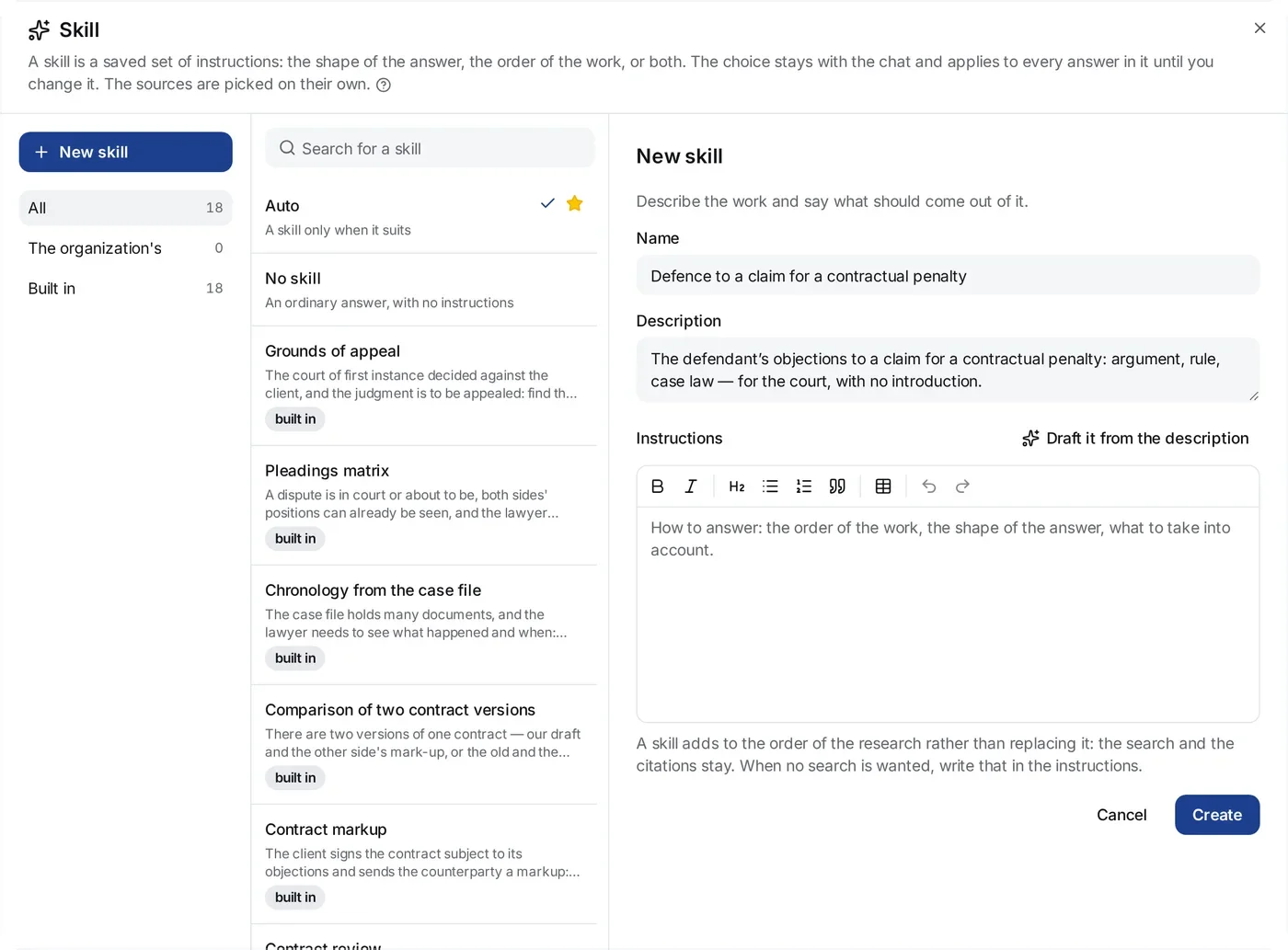
Write the instructions as you would give a task to an assistant: short paragraphs under headings, in the imperative, for example “Set out…”, “First list…”, “Do not write…”. The field shows the formatted text immediately. The toolbar above the field has Bold, Italic, Heading, List, Numbered list, Quotation and Table. The last two buttons, Undo and Redo, cancel an edit and do it again. When the cursor is in a table, the table button changes to buttons for rows and columns: Add a row, Add a column, Delete the row, Delete the column and Delete the table.
A skill adds to the order of the research. It does not replace it: the search for case law and the citations with the references [1], [2] stay. On each point that the skill speaks about, the skill wins. On each point that it does not speak about, nothing changes. If you do not need a case-law search and the work must use only the attached documents, write this clearly in the instructions.
A skill is written in one language, but the answer comes in the language of the question. The service translates the headings and section names of the skill into that language, and keeps their order and form.
The Create button saves the skill. The skill then shows in the list next to the built-in skills, for you and for your colleagues, and the window chooses it for you.
Draft it from the description
If you do not want to write the instructions yourself, write the Description field in your own words and press Draft it from the description. The service fills in the instructions, fills in the name if it is empty, and rewrites the description. For example:
The defendant’s objections to a claim for a contractual penalty: argument, rule, case law — for the court, with no introduction.
You can edit the result before you save it. It is a draft, not a finished skill.
What a skill cannot change
A skill cannot change four rules. If a sentence of a skill goes against one of these rules, the answer does not follow that sentence. The rest of the skill applies as usual:
- Citations. A skill cannot remove, weaken or make optional the references
[1],[2]. - Source identity. A skill cannot tell the service to guess, change or invent the court, the level of court, the ECLI or the case number.
- Subject of the work. A skill cannot take the service outside legal research in the Netherlands, France and Poland, or make it tell which model it runs on.
- Invention. A skill cannot allow statements that the materials do not support, for example “if there is no case law, give typical examples from your own knowledge”.
But a skill can narrow the search, for example “cassation only”, “the last three years” or “focus on consumer disputes”. This is permitted. If the narrowed search finds no answer, the service says so and does not invent one.
The default skill
The Make it the default button in the card of a skill marks the skill with a star. The service then puts this skill in the question row each time a member of the organization starts a new chat. The member can still change it before sending the question.
The default skill is a setting of the whole organization. Only an owner or administrator can change it. The cards of Auto and No skill have the same button. The first makes new chats take a skill only when it suits the question. The second makes new chats start with no skill.
If somebody turns off the default skill, new chats start with Auto, as if no default skill were set. You cannot make a skill that is off the default skill.
Who can edit and delete a skill
The author of a skill can edit and delete it, and so can an owner or administrator of the organization. If you are not an administrator, the skill of a colleague opens in read-only mode. But the Copy button is always available: make a copy and edit it.
When you delete a skill, the past answers do not change. The skill is removed from the list, the chats that used it continue without it, and the answers that it already shaped stay as they are.
Turning a skill off
You do not have to delete a skill that your organization no longer uses. Turn off the On switch in its card, and the skill stops working, but nothing is deleted. Do this with a built-in skill that does not suit your practice, or with your own skill that you want to keep for later.
A skill that is off:
- is not in the picker, so nobody can choose it or copy it;
- is not taken by Auto;
- cannot be the default skill;
- does not apply to new work: a chat that had this skill gives ordinary answers from the next answer. The answers that are already written do not change.
Nothing is lost. The name, the description and the full text of the instructions stay, and the chats keep the skill as their setting. The same switch puts everything back exactly as it was, and those chats start to answer with this skill again.
This is the difference between turning off and deleting. Deleting cannot be undone, and it makes the name free for a new skill. Turning off can be undone, and the name stays in use.
An owner or administrator of the organization can turn a built-in skill off and on. Your own skill can be turned off and on by its author and by an owner or administrator: the same persons who can edit it. Turning a skill off is a setting of your organization only. In other organizations, the same built-in skill stays on.
What next
- How to ask the question itself: Asking a question and getting an answer.
- How to check what the answer stands on: Citations and sources.
- How to add your own documents to the work: Uploading documents.
- How to take a finished answer out of jurispraxis.ai: Exporting a chat to Word.