The jurispraxis.ai app has a simple layout. On the left is the sidebar with the main sections. In the centre is your work area. This article tells you where each thing is.
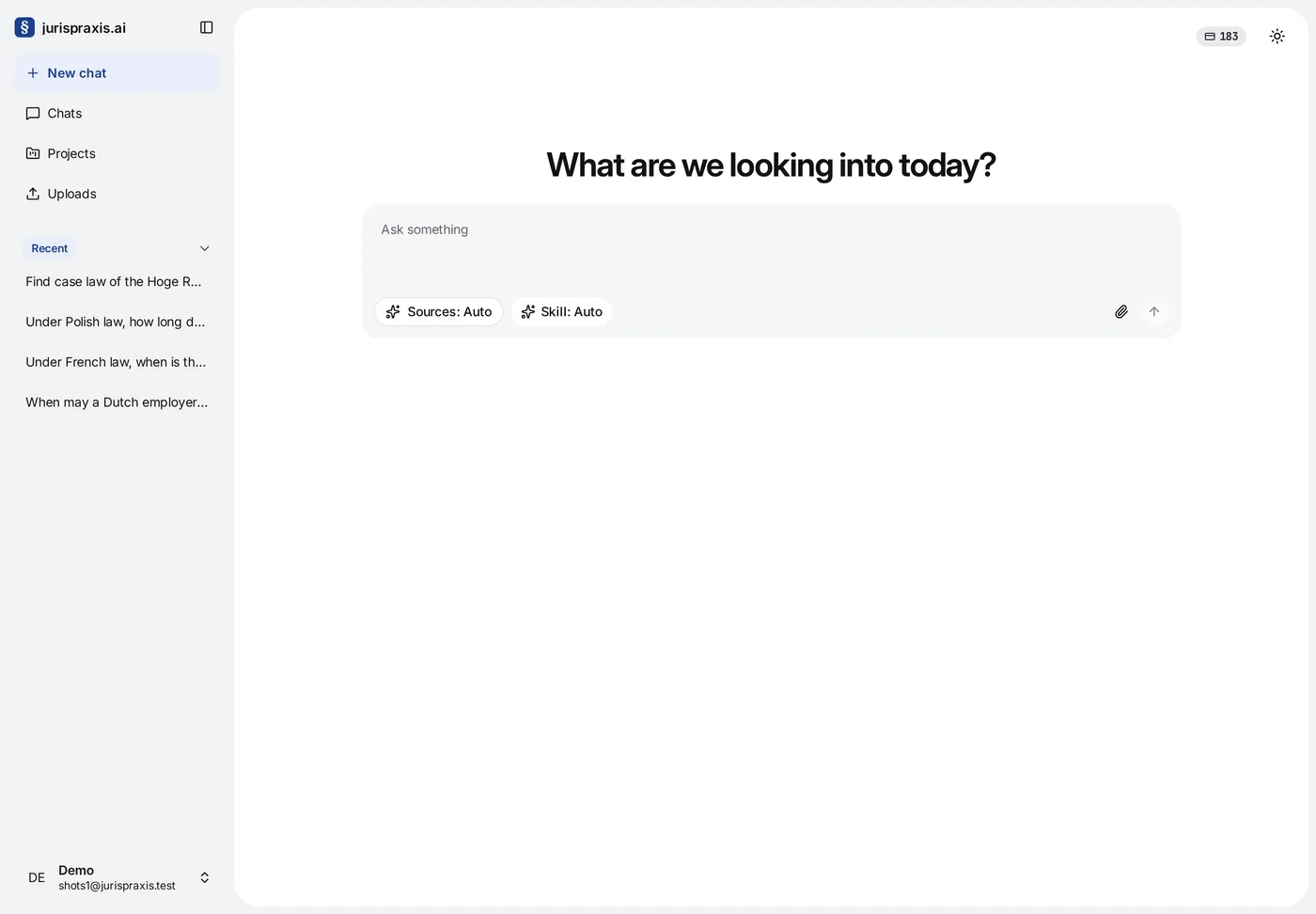
The sidebar
- New chat — the home screen, where all research starts. Here you type your question and choose the sources.
- Chats — a table of every chat you have access to: your own and those shared with you. Here you can find a chat, open it again, move it to a project, delete it or export chats to CSV. See The Chats page and CSV export.
- Projects — folders that keep related chats together, by matter, client or subject, with their files and drafts. See Projects.
- Uploads — your library of documents, in folders. From here you attach files to chats. See Uploading documents.
Below the sections, Recent shows your latest chats. Each chat in the list has a menu with Add to a project and Delete. If you delete the chat that is open, a new chat opens in its place.
At the bottom of the sidebar is your name. Press it to open a menu with Account (your settings), Support (an email to support@jurispraxis.ai) and Sign out. If you are a member of more than one organization, the same menu shows them under Workspaces, and you switch between them there.
Chats
In jurispraxis.ai, a chat is one piece of research. It is a conversation in which you ask questions and the service answers with quotations. A new chat gets its name from the first 60 characters of your first question. You can rename it at any time: press the name at the top of the chat.
Credit balance
Your credit balance is at the top right of the screen. Credits pay for the processing of your questions and for the answers. Press the balance to see how many credits are Available. From the same menu, an owner or administrator goes to the billing with Open billing, and a member goes to their usage with Open «My usage». To learn what credits are and how they are spent, see Credits.
Settings
To open the settings, press Account in the menu under your name. The settings give access to your account. Owners and administrators of an organization also manage the members, the plan, the billing and the credit spending there:
- Account — your name, the interface language (English, Nederlands, Français or Polski), your password and two-factor authentication. See Changing your password and Two-factor authentication.
- General — the name of the organization (owners and administrators only).
- Members and Invitations — the team (owners and administrators only). See Team members and roles.
- Usage — the credit spending of the organization. See Usage log.
- Plans and Billing — the plan, the payment method and the payment history (owners and administrators only). See Plans.
A member who is not an owner or administrator sees only Account and Usage.
Light and dark themes
The app has a light theme and a dark theme. The switch is at the top right, next to the balance. It gives three options: Light, Dark and System.