A project gathers the chats of one matter, client or subject, with their files, their drafts and the people who have access. Thus you do not have to look for them in the full list. And every chat in a project reads its description and the questions of its other chats, so you do not have to give the facts of the matter again in each new chat.
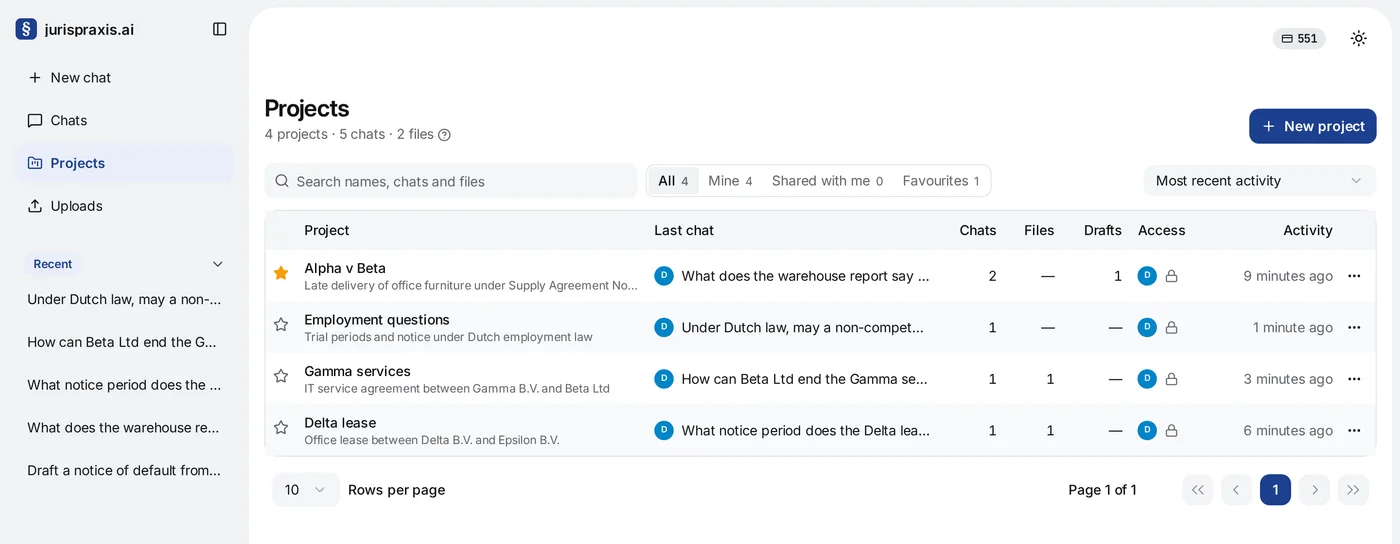
Making a project
- Open Projects and press New project.
- Fill in Name (you must give one) and, if you like, Description.
- Press Create.
Every chat of the project reads the description, as the hint below the field says. Write in it what every chat should know about the project. See below for how a chat uses it.
The description can be up to 8000 characters, and the counter below the field shows how many you have written. When the text is longer, the hint turns into Shorten the description to 8000 characters., and the project is not saved until you shorten it.
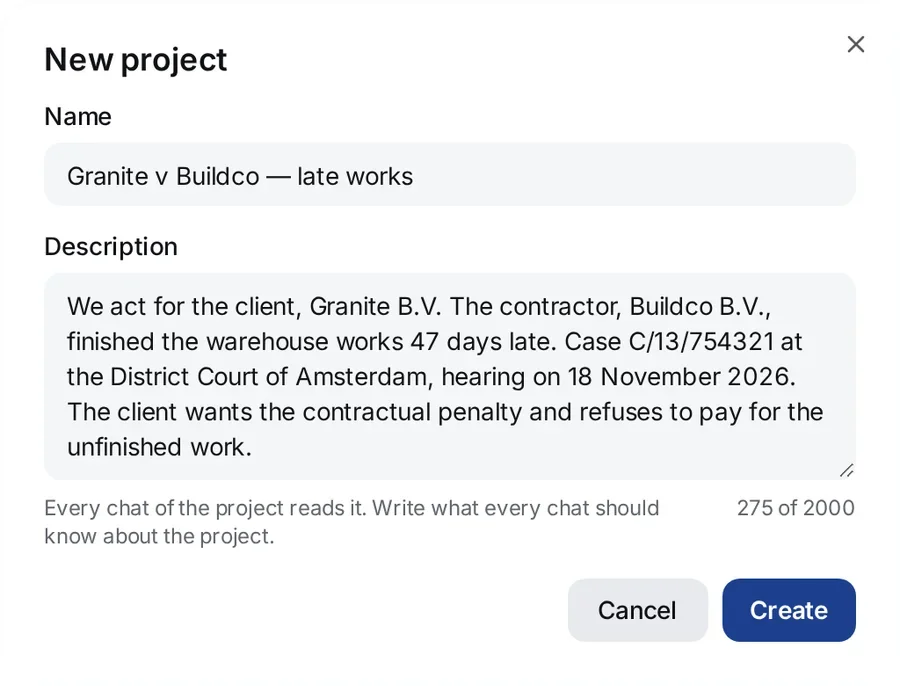
The list of projects
The Projects page is a table. Above it, you see how many projects you have, and how many chats and files they hold.
- The Search names, chats and files box finds a project by its name or description, or by the name of a chat or a file in it.
- The filters All, Mine, Shared with me and Favourites each show how many projects they hold. Mine shows the projects you made. Shared with me shows the projects of colleagues that you have access to.
- The Order list sorts the projects by Most recent activity, Name or Number of chats. Favourite projects always come first.
Each row has a star, the name with the description, and the columns Last chat (with its author), Chats, Files, Drafts, Access and Activity. On a narrow screen, some columns are hidden. The list is shown in pages. To change how many rows a page shows, use Rows per page below the table.
Click a row to open the project.
The project page
Below the name of the project, you see how many chats, files and drafts it has, and who has access: Owner only, Chosen members or Whole organisation.
You can start a new chat here straight away: the Ask something in this project box starts a chat that already belongs to the project.
Below it, Chats · N lists the chats of the project. Each chat shows its author, the number of questions and files, the skill if the chat has one, and when it last changed. To find a chat by its name, type in Find a chat.
On the right is the project’s column:
- About — the description, the owner and when the project was made;
- People — the people with access to the project, with the marks owner and you;
- Files — the files attached to the chats of the project. Click a file to read its text. If the file is not in your library, the click opens the chat that holds it;
- Drafts — the drafts made in the chats of the project. Click a draft to open it in its chat.
A long list is cut short. Show all (N) opens it, and Show fewer closes it again.
Adding chats to a project
- In the sidebar, in the Recent list: open the chat’s menu, choose Add to a project, then the project. If the right project does not exist yet, choose New project…: the project is made, and the chat goes into it at once.
- On the Chats page: open the Actions menu (the three dots) in the chat’s row, choose Move to a project, then the project. The same menu has Take out of the project.
- For several chats at once: tick them on the Chats page and press Move the picked chats to a project in the bar at the bottom. See The Chats page and CSV export.
What a chat in a project knows
With each question in a chat of a project, the model reads:
- the name and the description of the project, and the date they last changed;
- the questions the lawyers asked in the project’s other chats, word for word and with their dates. The model does not see the answers to them here;
- the names of the files, drafts and grids in the project’s other chats, and which chat holds each one.
Thus the facts written once, in the description or in a question of one chat, reach every new chat, a colleague’s chat too. A change, such as a new description or a new chat in the project, counts from the next question.
How the model uses it:
- It is background, not a source. The files of the chat and your question come first. The model does not cite the description or the other chats’ questions, and it does not mention them in the answer unless you ask about the project. One exception: when a date the description names, such as a hearing or a filing deadline, has passed, the model says so once.
- Newer wins over older. When a later question changes a decision, the model follows the later one.
- A request for one answer stays in its chat. “As a table this time” or “shorter” in another chat does not apply here.
Files, drafts and grids of other chats
Of another chat’s file, draft or grid, the model sees only the name, not what it holds. When a question needs one, the model opens it by itself, so you do not have to add it to the chat:
- a file becomes a document of this chat, and the model cites it as it cites a file you attached;
- a draft of another chat is read only: you cannot change it from here, and the model cites the files and the law it rests on, not the draft;
- the rows of a grid become documents of this chat; you cannot add a column to the grid from here.
While the answer is made, such a step says from the project: «Chat name».
Where you see it
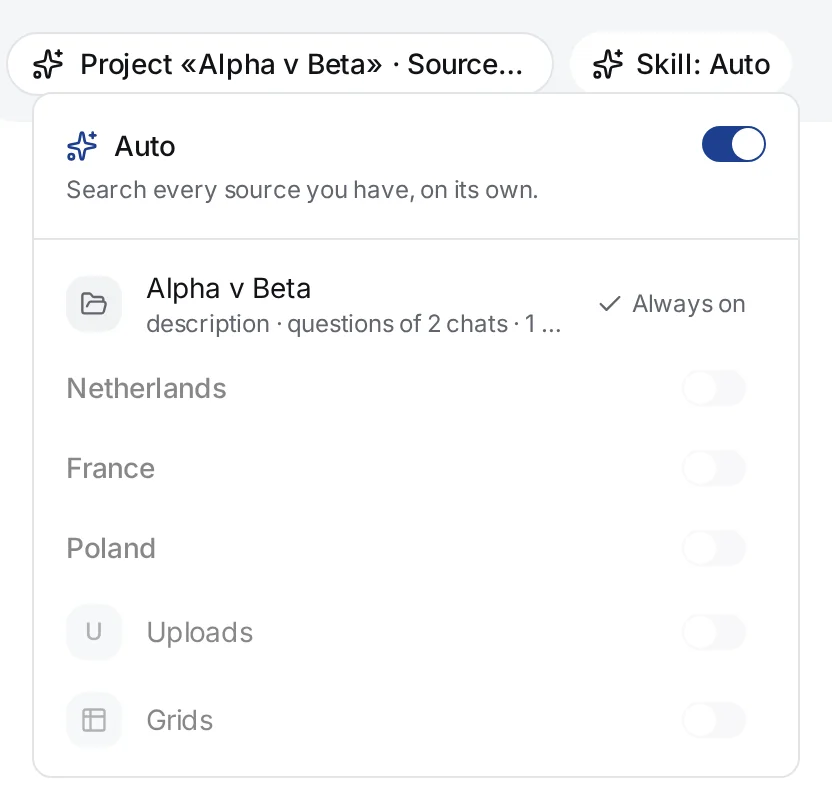
- In the question field, the Files and sources window shows the project as its first row, marked Always on. Below the name, it says what the chat reads, for example “description · questions of 3 chats · 2 files”. You cannot turn the project off: a chat in a project always reads it.
- The chip below the field starts with the name of the project: Project «Name» · Sources: Auto.
- While the answer is made, you see the step Reading the project, then Read the project and the questions of 3 chats with the names of those chats. When there is no other chat it may read, the step says Read the project’s description.
Which chats are read
A chat reads another chat of the project only when everyone who can open this chat can also open that one. It reads the description only when everyone who can open the chat can also open the project. Thus nobody learns from an answer what they cannot open. Access is checked again with each question.
- Chats set to Follow the project read each other.
- A chat open to a few members of the project (The members you pick) reads the chats open to the whole project, but they do not read it.
- A chat open to more people than the project, for example to Everyone in the organization when the project is open to the members you pick, reads neither the description nor the other chats. Its Files and sources window shows no project row.
To set who has access, see Access to chats and projects.
When there are many questions
The model reads the other chats’ questions up to a limit. When there are many, long questions are cut short and the oldest ones may be left out: the latest questions of each chat stay first. The names of files, drafts and grids are listed up to a limit as well, the newest first. When a project holds more than fit, the model asks for the rest when a question needs them, so every file, draft and grid of the project stays within its reach.
The model sees the names of people and companies in the description and in the other chats’ questions as labels, as it sees everything else. See What the model sees.
Sources in the chats of a project
A project does not set the sources: each chat chooses its own. A new chat in a project starts on Auto, and the sources you pick in it stay in that chat. They do not carry to the other chats of the project — see Sources and the Auto mode. The project row in Files and sources sits next to the sources, but it does not change where the chat searches.
Favourites and managing a project
- Mark your important projects with the star: in the project’s row, next to its name on the project page, or with Add to favourites in the project’s menu. They go to the top of the list and show under the Favourites filter. Take out of favourites removes the mark.
- The project’s Actions menu (the three dots) also has Edit, for the name and the description, and Delete.
The mark is shared: everyone with access to the project sees the star. Only the owner of the project and the administrators of the organization can set it, remove it or open the menu.
When you delete a project, its chats are not deleted. They only lose the project and stay on the Chats page.
Working together
You can open a project and its chats to colleagues in your organization with the Access button on the project page. See Access to chats and projects.