To start with jurispraxis.ai you need only a name, an email address and a password. Making an account takes about a minute. When you confirm your email, you get 300 credits on the free Start plan, with no card.
Making an account
- Open app.jurispraxis.ai/sign-up.
- Type your name and your work email, and choose a password of 8 to 128 characters. Type it once more in the Type the password again field.
- Complete the bot check under the form and press Make an account.
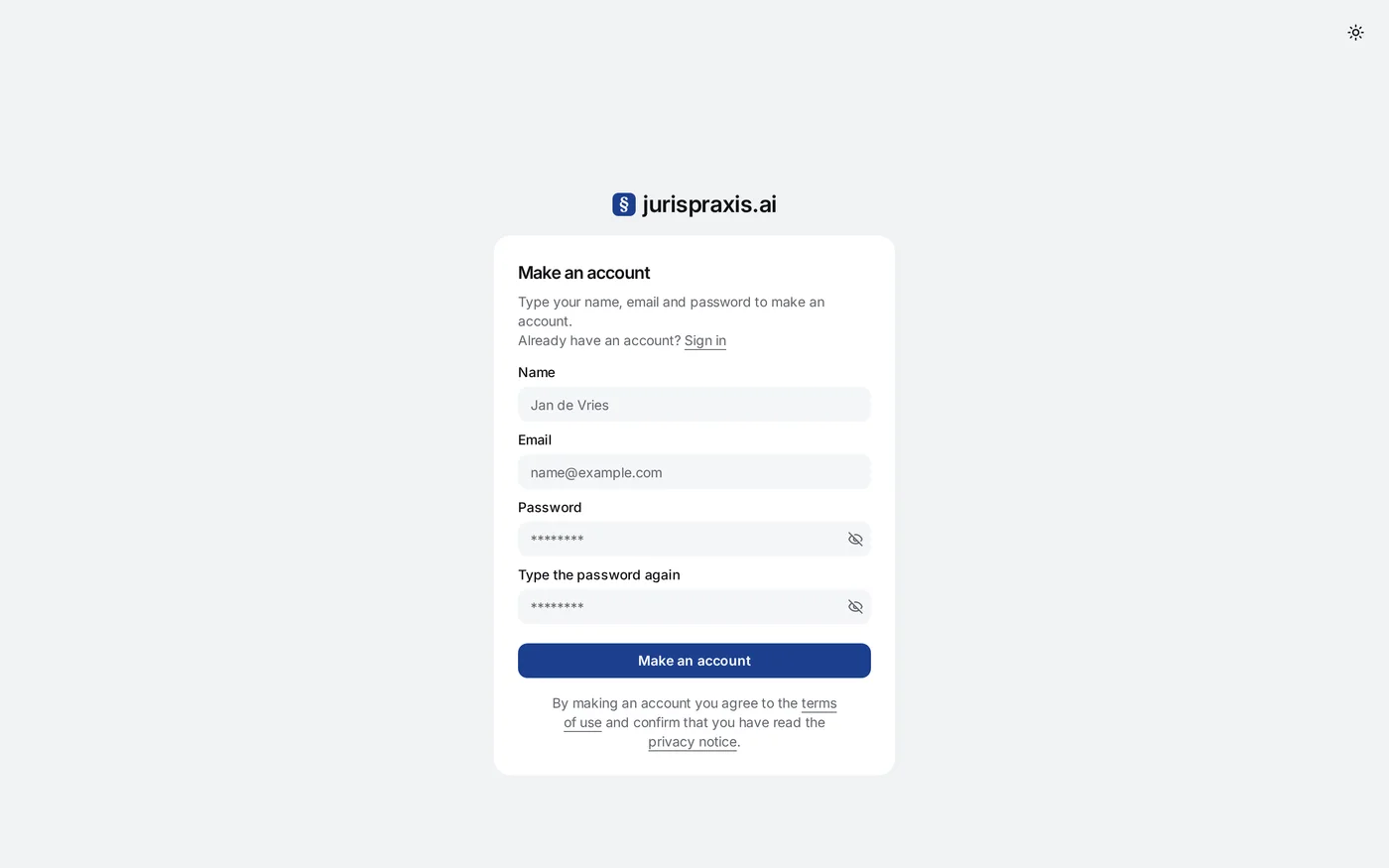
A throwaway (disposable) email address is refused.
By making an account you agree to the terms of use and confirm that you have read the privacy notice.
Confirming your email
After you sign up, we send you an email with a confirmation link. Follow it to finish making the account. Until you confirm your email, you cannot sign in. The link works for one hour. When you follow it, jurispraxis.ai signs you in and takes you to the app, and your 300 starting credits arrive.
- The email can take a minute. Look in the spam folder too.
- If no email comes, press Send it again on the Check your mail page. You can send it again once every 30 seconds.
- If the link has expired, the page it opens offers Send the mail again.
Signing in
After that, sign in at app.jurispraxis.ai/sign-in with your email and password. If you forget your password, press Forgot your password?, type your email and press Carry on. The email we send has a link to set a new password. If two-factor authentication is on, jurispraxis.ai asks for a code after the password. See Two-factor authentication.
When your session ends, the app opens the Sign in page, with no message. Sign in again, and the app takes you back to the page you were on.
Your first question
After you sign in, you see the home screen with the heading What are we looking into today?
- Type your question in plain words in the Ask something field, as you would put the task to a colleague.
- Send it with the arrow button or the Enter key. Shift + Enter starts a new line.
- jurispraxis.ai chooses the sources, finds the relevant documents and writes an answer with direct quotations and links to them.
Every answer has links to its sources. Check them before you use the answer in your work. To learn how to read an answer and check its quotations, see Citations and sources.
What next
- Learn the interface: chats, projects and uploads.
- Upload your own documents and ask about them next to the case law.
- You get the 300 starting credits one time only. To learn how credits are spent, see Credits. For the plans, see Plans and the pricing page.