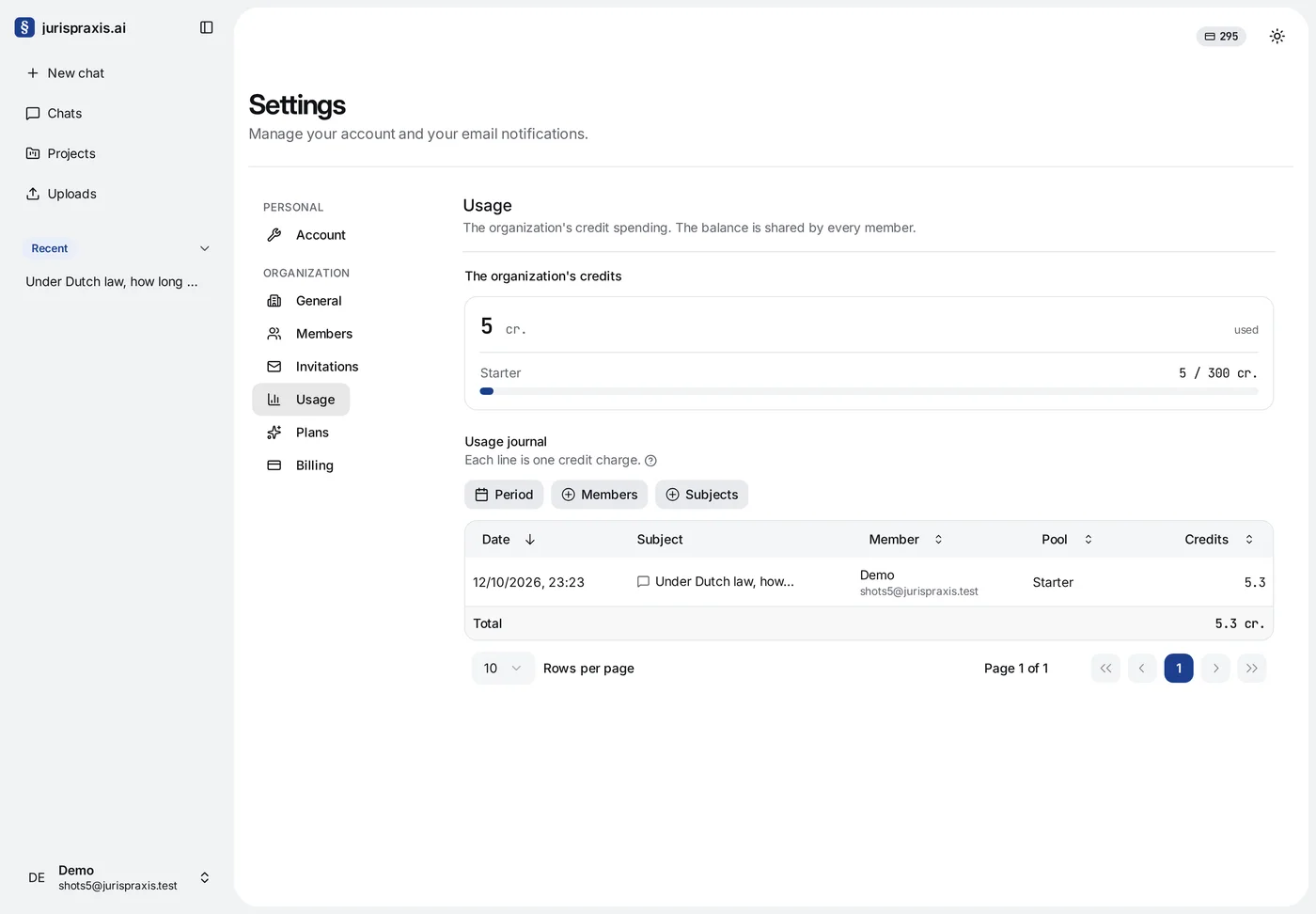
The **Usage** page shows what the organization's credits are spent on. The balance is shared by every member, so the journal tells you who spends the credits, and on what.
Where to find it
Open Settings → Usage. Every member has the page, but not the same lines: a member sees only their own charges, and an administrator sees the charges of the whole organization and a filter by member. The credits at the top of the page are the same for everyone, because the balance is shared.
A member can also open the page from the balance at the top of the screen, with Open «My usage».
The organization’s credits
At the top, The organization’s credits shows the credits used and a bar for each pool — Monthly, Starter and Extra credits — as used out of the pool’s total, for example 36 / 300 cr. A pool the organization never had does not show, and Starter shows only while the organization is on the Start plan. What each pool means is in What credits are.
The usage journal
Below is the Usage journal. Each line is one credit charge, so a question whose cost came from two pools shows as two lines. The columns:
- Date — when the credits were charged;
- Subject — the chat the credits were spent in. Press it to open the chat. A dash stands where the chat has since been deleted;
- Member — who started the work;
- Pool — which pool the credits came from;
- Credits — how many were charged, to a tenth of a credit.
The Total line at the bottom adds up the lines that match the filters. Press a column heading to sort by it.
Filters
You can narrow the lines:
- by Period — All time and the organization’s billing periods. While the organization has no billing period, as on the free Start plan, it offers This month, Last month, 30 days and 90 days. You can also set your own From and To;
- by Members — search for a member by name. Only administrators have this filter;
- by Subjects — search for a chat by name.
Reset the filters clears them all. When no line matches the filters, the journal says so.