The **Chats** page holds every chat you have access to. There you can find a chat, move it to a project, delete it, or export your chats to CSV, for example to attach them to a report or to move them into a spreadsheet.
The list of chats
Chats in the sidebar opens a table. Above it, you see how many chats you have, and how many questions and files they hold, with the New chat button.
- The Search names, questions and projects box finds a chat by its name, by the text of its questions or by the name of its project.
- The filters All, Mine and Shared with me each show how many chats they hold. Mine shows the chats you started. Shared with me shows the chats of colleagues that you have access to.
- The Order list sorts the chats by Most recent activity, Name or Number of questions.
Each row shows the name of the chat and, below it, its project (or No project) and its skill, if the chat has one. Then come the columns Last question, Questions, Files, Drafts, Access and Activity. On a narrow screen, some columns are hidden. The list is shown in pages. To change how many rows a page shows, use Rows per page below the table.
Click a row to open the chat.
Actions on a chat
At the end of each row is the Actions menu (the three dots):
- Move to a project — pick a project, and the chat goes into it. If the chat is already in a project, the same list has Take out of the project;
- Delete — deletes the chat after you confirm.
The author of the chat and the owners and administrators of the organization see this menu.
Actions on several chats
Tick the chats, or tick the box in the table header (Pick all) to pick every chat on the page. The tick boxes are shown on a wide screen. On a phone, the table does not show them. A bar opens at the bottom with three buttons:
- Move the picked chats to a project — pick a project, or Take out of the project;
- Export the picked chats to CSV;
- Delete the picked chats.
You can move or delete the picked chats only if you are the author of each of them, or an owner or administrator of the organization.
How to export
- Open Chats.
- Tick the chats you need. To find them quickly, use the search box or the filters first.
- In the bar at the bottom, press the download button (Export the picked chats to CSV).
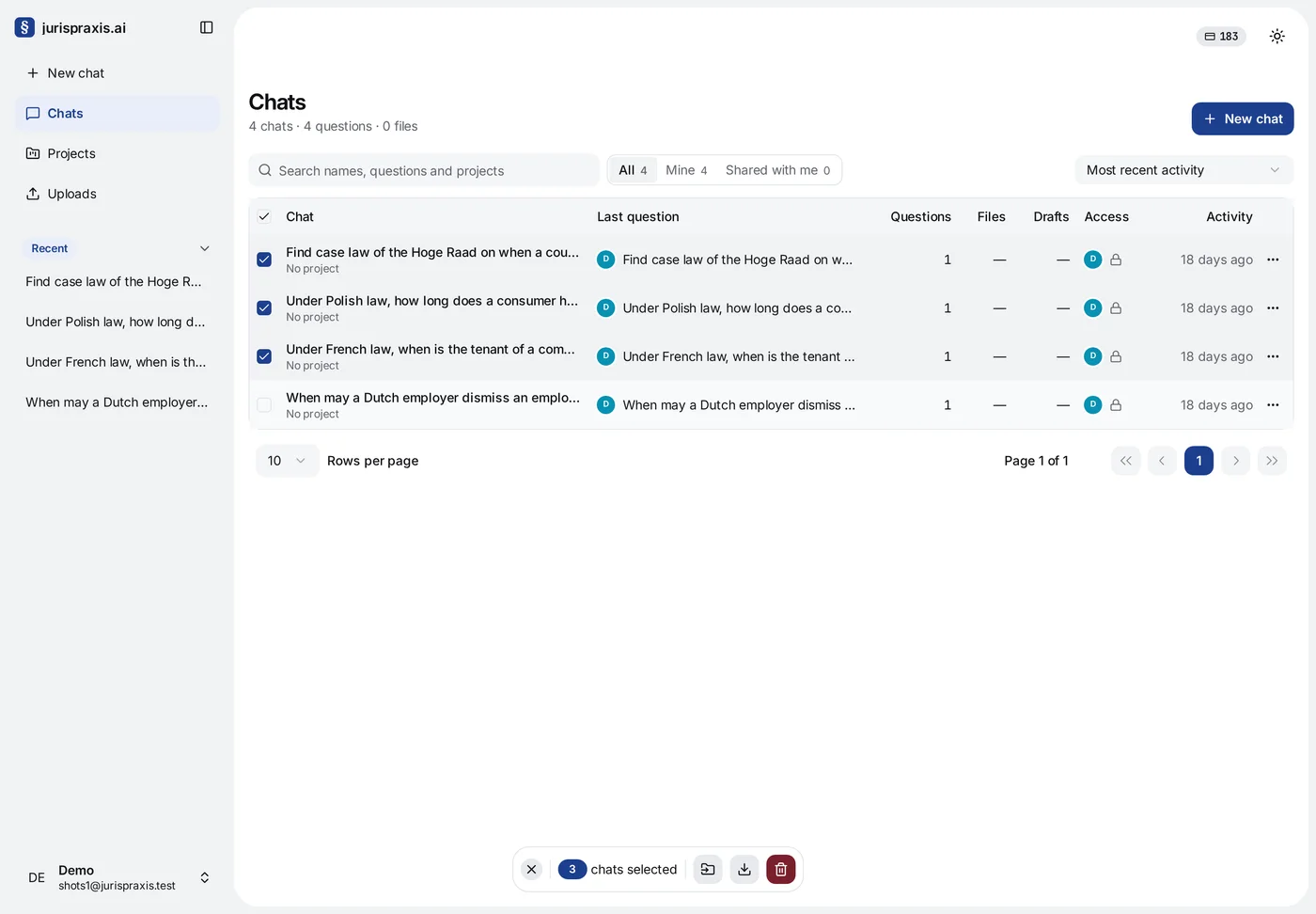
jurispraxis.ai makes the file immediately and tells you how many chats it exported (Chats exported: with the number).
What the file contains
The CSV file has one row for each chat you picked, with these columns: Chat, Project, Skill, Author, Last question, Questions, Files, Drafts, Started and Last activity. The dates are full timestamps in ISO 8601 format, in UTC. The file name contains the date and time of the export. The file opens in any spreadsheet program, for example Excel, Google Sheets or LibreOffice Calc.
Deleting chats
You delete a chat with Delete in its row’s Actions menu, with Delete the picked chats in the bar, or from the Recent list in the sidebar. If you delete the chat that is open, a new chat opens in its place.
jurispraxis.ai asks you to confirm before it deletes. A deleted chat cannot be restored: every message, document, column and result in it goes too. Thus, before you clear the list, export what you need to CSV.
Only the author of a chat, or an owner or administrator of the organization, can delete it.