Two-factor authentication (2FA) adds a second step to your password: a one-time code. If someone learns your password, they still cannot sign in without the code. We recommend it most for administrators and teams.
Turning it on
- Open Settings → Account and, under Two-factor authentication, press Turn on.
- In the Turn on 2FA window, type your Password and press Confirm.
- The Set up 2FA window opens. Keep your backup codes (see below), then choose how the code reaches you: App or Email.
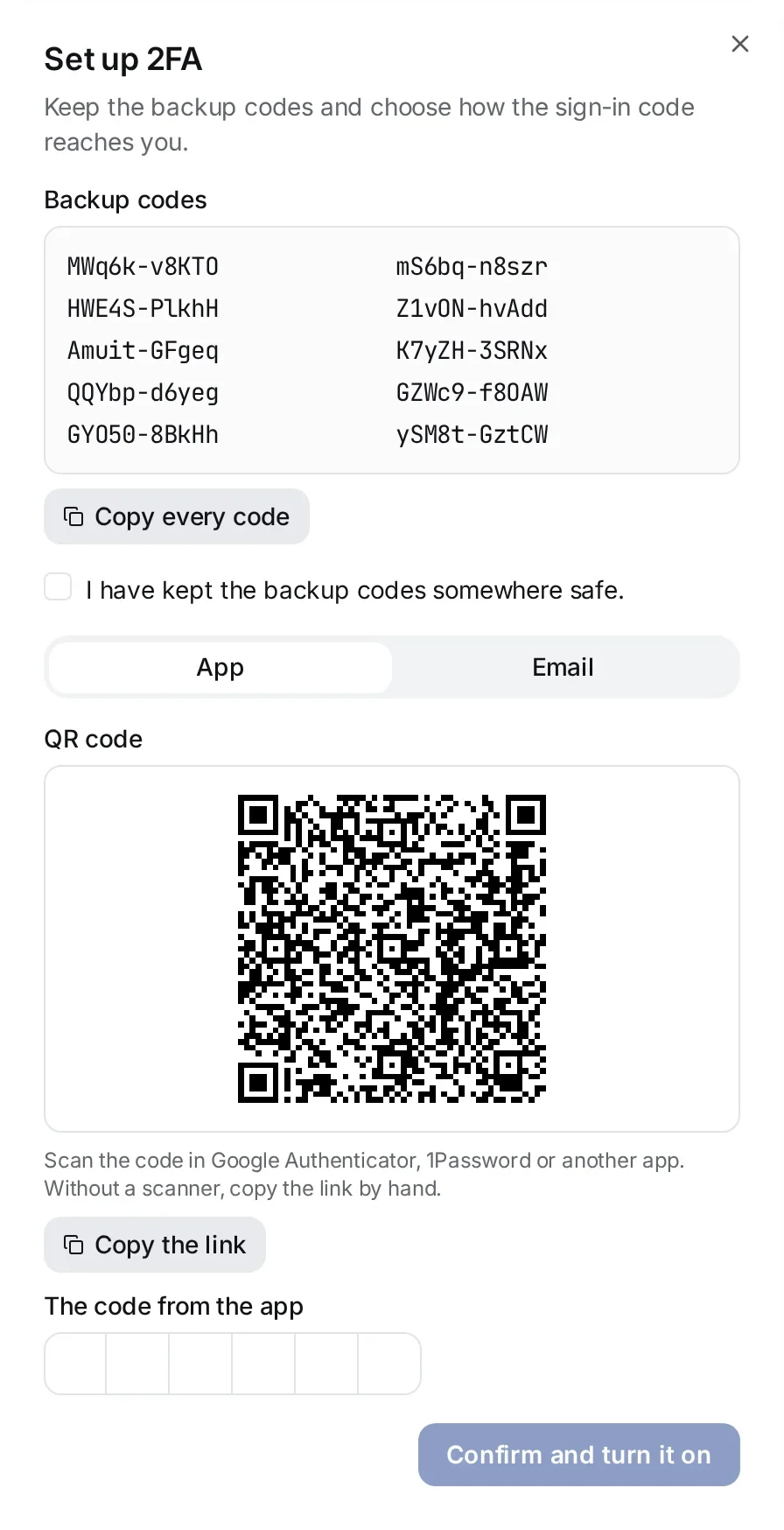
Authenticator app
Scan the QR code in Google Authenticator, 1Password or another app. Without a scanner, press Copy the link and add it to the app by hand. Then type the 6-digit code in The code from the app.
The code goes to your email address on every sign-in. To confirm the setup, press Send the code and type the code from the mail in The code from the mail. A code is good for 3 minutes.
Backup codes
When you turn 2FA on, the Set up 2FA window shows your Backup codes. A backup code lets you sign in when you can use neither your app nor your email. Each code works once.
- Press Copy every code and keep the codes somewhere safe, for example in a password manager.
- Tick I have kept the backup codes somewhere safe. and press Confirm and turn it on. The button works only when the box is ticked and the 6-digit code is typed.
To replace your codes, press New backup codes and confirm with your password. Keep the new codes, tick the box and press Done. The old codes no longer work.
Signing in with 2FA
After your password, the Two-factor authentication page opens and sends a code to your email at once. Type the 6-digit code and press Confirm.
- To use your authenticator app instead, press Use the authenticator app. Get the code by email takes you back.
- If no mail comes, press Send the code again. It becomes available 30 seconds after the last code.
- If you can use neither your app nor your email, press Use a backup code, type one of your backup codes and press Confirm.
Turning it off
Under Two-factor authentication, press Turn off, type your password in the Turn off 2FA window and press Confirm. After that, signing in asks only for your password, so turn 2FA off only when you really need to.