You change your password in the account settings. If you forgot it, you can reset it from the sign-in page, with no need to write to support.
Change the password in the settings
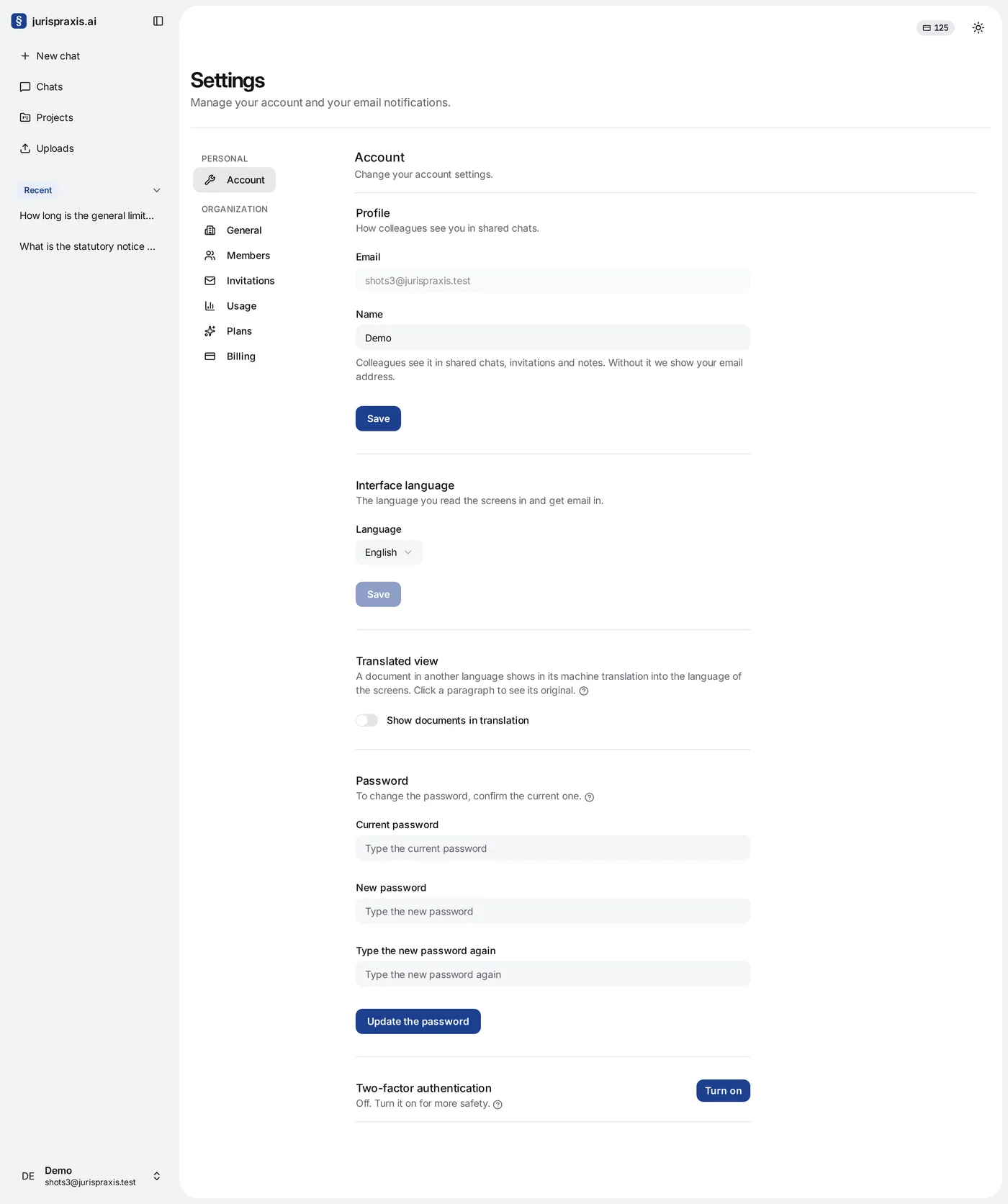
- Open Settings → Account. The Account item is in the menu under your name.
- Under Password, type the Current password.
- Type the New password, from 8 to 128 characters, and type it again in Type the new password again.
- Press Update the password. When it works, you see The password is updated.
The Email in the Profile block above is there for reference and cannot be changed. You change your Name in the same block.
If you forgot the password
- On the sign-in page, press Forgot your password?.
- Type the email of your account and press Carry on. We send you a link to reset the password.
- Open the link from the mail. It works for one hour. Type the new password twice and press Reset the password. Then sign in with the new password.
Keeping access safe
- Do not give your email and password to anyone. Everything done under your account counts as done by you.
- For more protection, turn on two-factor authentication.
- If you see a sign-in you do not know — for example, a sign-in code you did not ask for — change your password and write to support@jurispraxis.ai.