A team shares its work and its credits. Chats and projects open to colleagues, while an uploaded file stays visible only to you and the administrators until you give access to it or attach it to a shared chat. The administrators of the organization manage its members in **Settings**.
Members
Settings → Members lists the other members of the organization with their Status and Role in the organization. Your own row is not in the list. Open a row’s menu to change the member’s role with Edit, or to take them out of the organization with Delete.
When you remove a member, their account stays. Only their membership of this organization goes. To remove several members at once, pick their rows and use the delete button in the bar that opens.
Inviting colleagues
- Open Members or Invitations and press Invite a member.
- Type the colleague’s Email and pick a Role: Member or Administrator.
- Press Send the invitation. The colleague gets a mail with an Accept the invitation button.
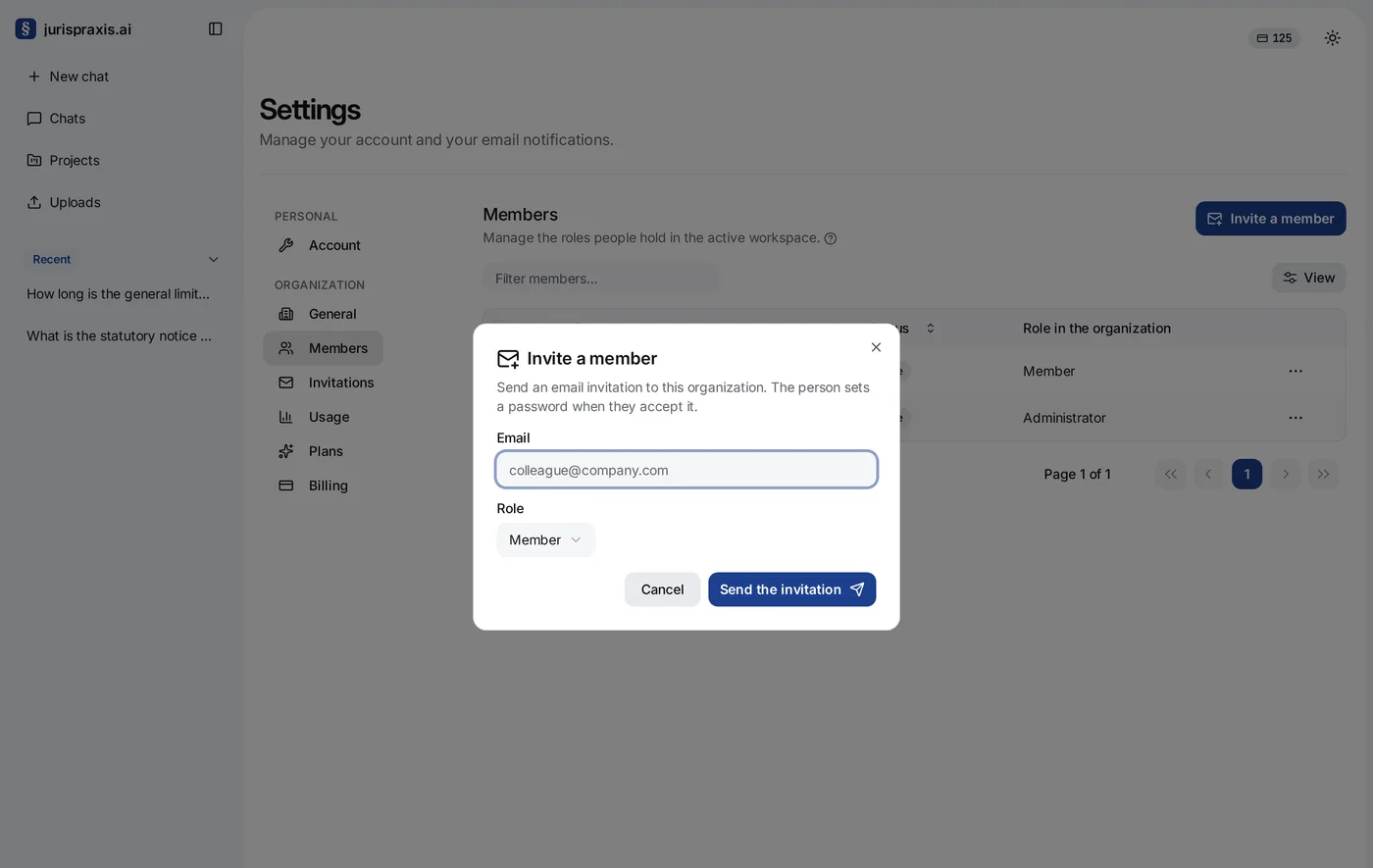
If the organization has no name yet, the window also asks for the Organization name, because the guest sees it in the mail. If your profile has no name, it asks for Your name as well.
The colleague signs in, or makes an account, with the address the invitation went to, and accepts it. A person can belong to several organizations and switches between them under Workspaces in the menu under their name.
Invitations lists the invitations you sent, with their Status and the date in Expires. An invitation is good for 48 hours. To withdraw one that is still Waiting, open its menu and press Cancel the invitation.
Roles
A role sets what a person can do in the organization:
- Owner — the person who made the organization. The owner has every right of an administrator and is the only one who manages payments. Each account starts as the owner of an organization of its own.
- Administrator — manages the members, the invitations and the organization’s name, sees the credit spending of the whole organization, the plan and the balance in Plans and Billing, and has access to every chat and project.
- Member — works in the chats and projects they have access to, and sees their own spending in Usage.
The owner and the administrators always have access to every chat and project of the organization.
Payments
Only the owner manages payments. The owner takes, changes and cancels the plan, buys extra credits, opens Manage billing and sees the Payment history. Freemius, our reseller, knows the subscription by the owner’s email, and the checkout opens with that email filled in. See Plans.
An administrator sees the plan, the balance and the usage. Where the payment buttons are, an administrator reads Only the owner of the organization can manage payments. A member sees neither page.
If the owner changes, Freemius still holds the subscription under the email of the person who bought it. Manage billing then names that email; write to support@jurispraxis.ai to move the billing to the new owner.
Shared balance
The organization’s credits are shared by every member. See What credits are and The usage journal.
Access to work
Who sees a given chat or project is set on that chat or project. See Access to chats and projects. Uploaded files have access of their own: see File access.
Organizations, roles and shared access work on every plan. See Plans.