A new project, and a new chat outside a project, is seen only by its owner and the administrators of the organization. A new chat in a project is also seen by the members of that project. You can open each chat or project to single colleagues or to the whole organization.
Access to a chat
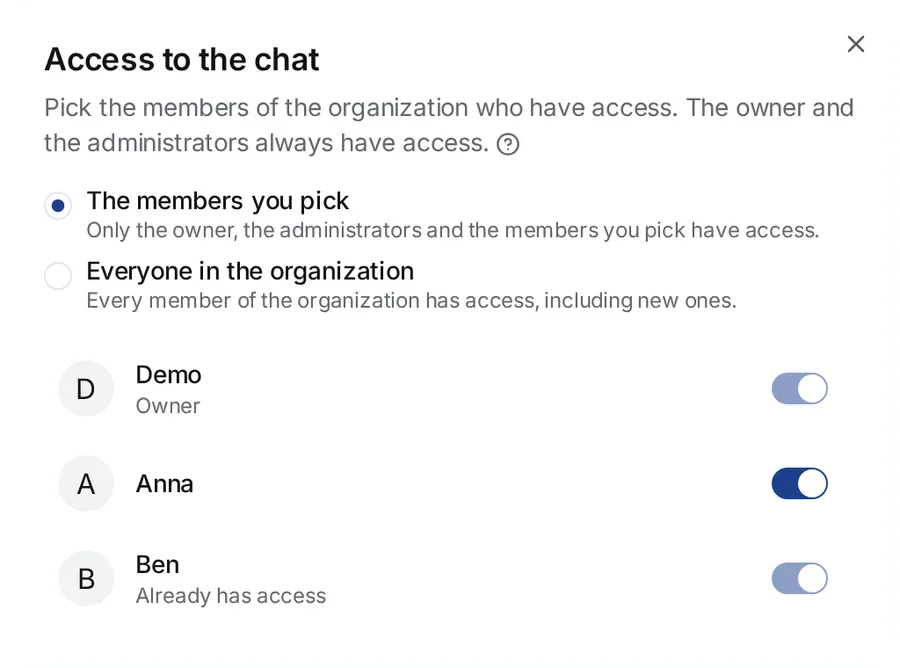
In an open chat, press the Access button, the share icon at the top of the chat. On a narrow screen, Access is in the Actions on the chat menu. In the Access to the chat window, pick who sees the chat:
- Follow the project — access as the project has it: a member of the project sees this chat. The option shows only when the chat is in a project.
- The members you pick — only the owner, the administrators and the members you pick have access.
- Everyone in the organization — every member of the organization has access, including new ones.
Below the options is the list of members, each with a switch. Turn a switch on to give that member access, and off to take it back. The chat’s Owner and the administrators always have access, so their switches cannot be turned off.
Only the chat’s owner and the administrators see the Access button.
Access to a project
On the project’s page, press Access. The Access to the project window has two options, The members you pick and Everyone in the organization, and the same list of members.
A member of the project sees the project and each chat in it that follows the project. A new chat in a project follows it, so for a chat in a project, Follow the project is often all you need.
Access also decides what a chat reads from its project. A chat reads the questions of another chat only when everyone who can open this chat can also open that one, and the project’s description only when they can all open the project. See Projects.
Who always has access
Whatever the setting, the owner of a chat or a project and the administrators of the organization always see it. This way, the organization never loses access to its own work.
A file attached to a chat is seen by everyone who sees that chat. Your other uploads have access of their own: see File access.
Before you start
Before you open anything to colleagues, invite them to the organization. See Team: members, roles and invitations.