By default, only you and the administrators of your organization see the documents you upload. Colleagues get access to a file when you attach it to a chat — then the members of that chat can read it — or when you open the file or its folder to them with Access.
Your own library
The Uploads page is your own library. The other members of the organization see neither your files nor your folders until you give them access. The exception is the administrators of the organization: they see the uploads of every member. Each member has their own Uploads page and their own folder tree. The files and folders that colleagues opened to you are in the tree under Shared with me.
Opening a document to colleagues
A file becomes available to colleagues when you attach it to a chat — with the paperclip in the question box or in the Files for the chat window. See Attaching files to a chat.
This access is only to this document and only in this chat. The rest of your library stays private. Who has access to the chat itself is a separate setting — see Access to chats and projects.
You can also open a file to colleagues without a chat: choose Access in the menu of the file or the folder. In the Access to the file window, choose The members you pick and turn on the switch of each colleague in the list, or choose Everyone in the organization. A file in a folder also has Follow the folder, and a new file starts with it. Access to a folder carries to the folders and files inside it. To close one file in an open folder, choose The members you pick in that file’s own window.
A colleague with this access reads the file and can put it in their own chats. Only the owner renames, moves or deletes it.
What colleagues see
A member of the chat who has access:
- sees the attached document among the sources of the answers;
- can open the quoted passages and the full text of this document.
That member gets no access to your other uploads. They do not see them on their own Uploads page, and they cannot pick them in the Files for the chat window: there, each member sees their own library and the files opened to them with Access. A shared chat can hold files from different members: each member attaches their own files, or the files opened to them.
A chat reads only what you picked
The file scope of a chat is a list of specific documents, not your whole library. The service does not search your uploads by itself, and it cannot go past what you picked: for the chat, a file that is not ticked does not exist.
Deleting a document
Only the owner of a file can delete it. If the document is attached to chats, the delete window warns you: it says that the links to the file stop opening, and its Chats line names each chat that holds the file.
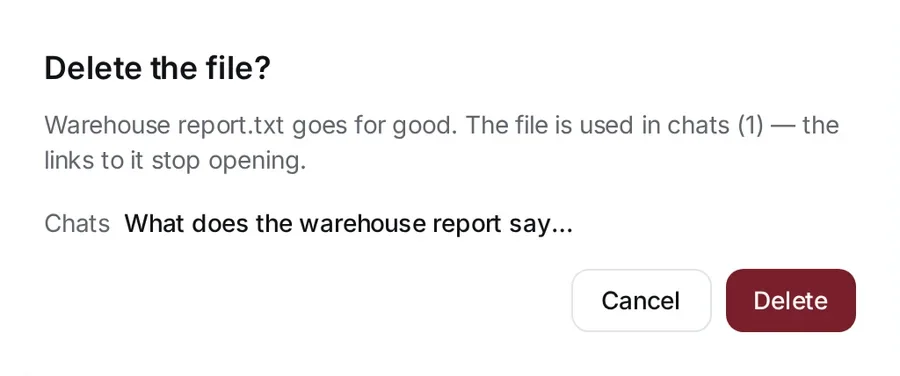
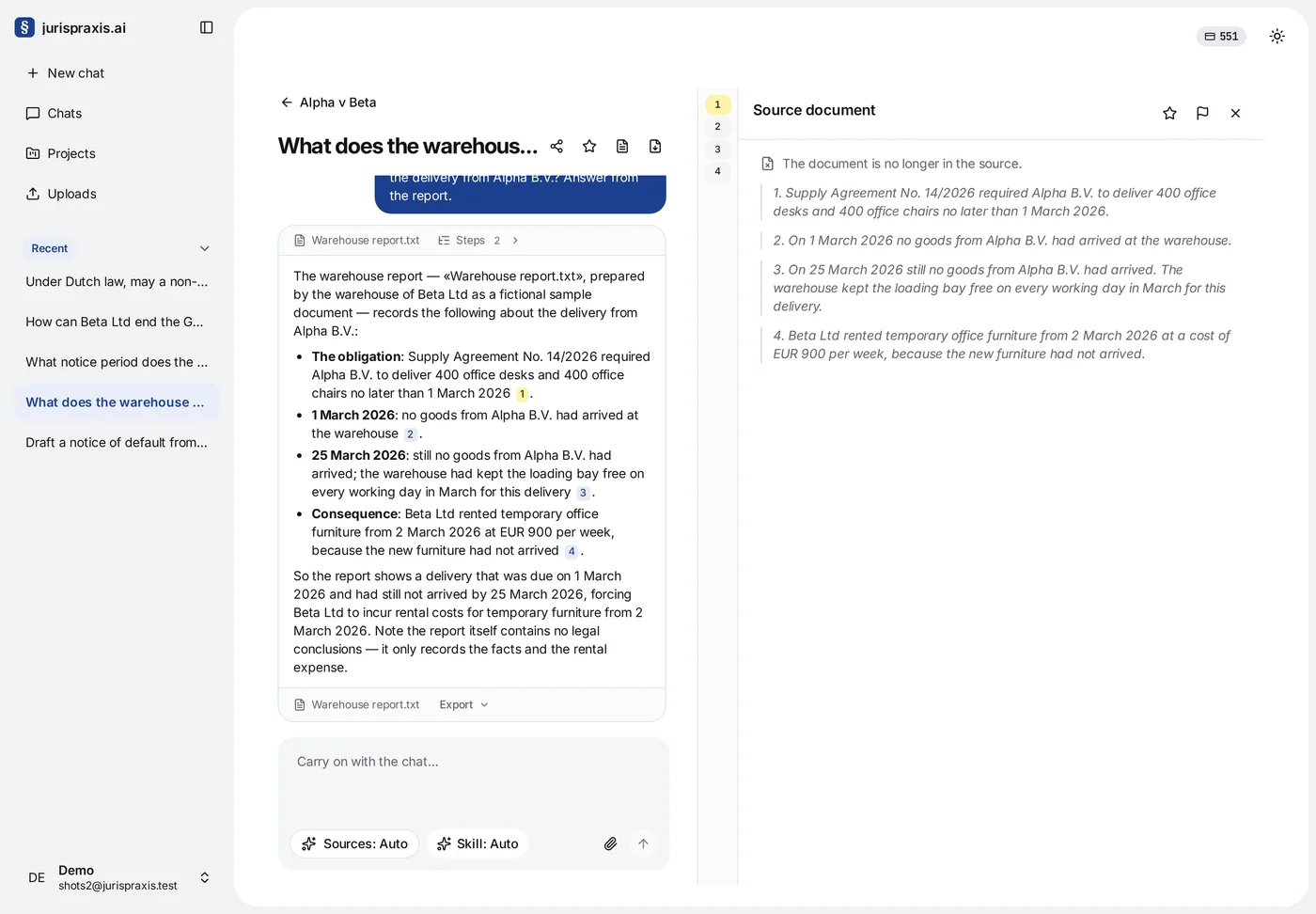
After the deletion, the answers and the quoted text stay in the chats, but nobody can open the file itself. In its place is the note The document is no longer in the source., next to the quotation saved earlier.
When you delete a folder, its documents stay: they move to No folder. See Folders: keeping uploads in order.
When a file is no longer there
When the owner deletes a document, every member of the chats that held it sees the same thing: a click on the source shows that the file is no longer there, next to the passage quoted earlier. The finding in the answer stays where it was.