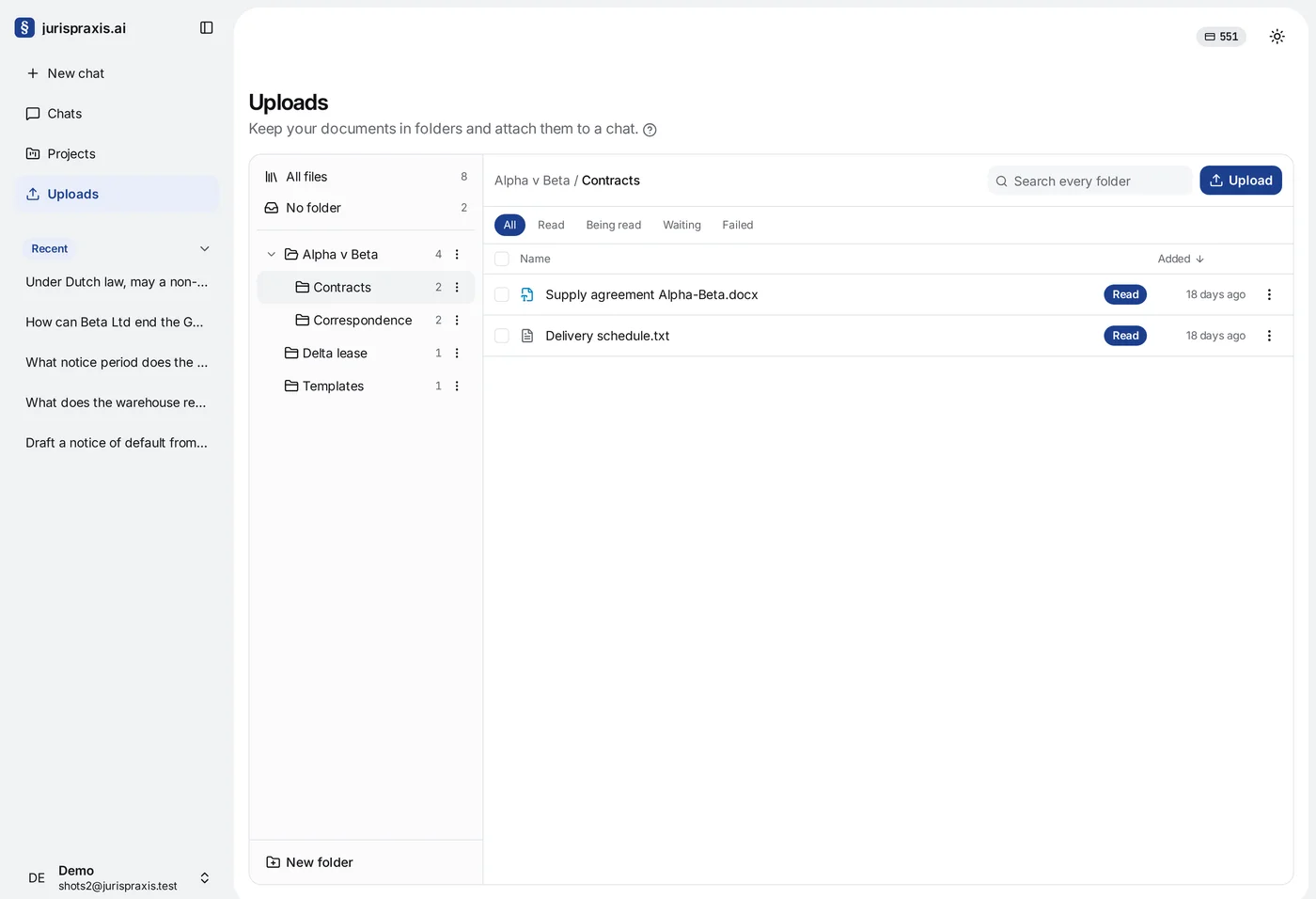
The Uploads page works like a file manager: the folder tree on the left, the files of the open folder on the right. Keep the documents of one matter together, and you can attach the whole folder to a chat with one tick.
How the page is laid out
- On the left are All files, No folder and your folders. If colleagues gave you access to their files or folders, Shared with me appears below them. Next to each folder is the number of files in it and in the folders inside it.
- On the right are the files of the open folder. Above the list is the path of the folder, for example Supply / Contracts. Click any step of the path to open it.
- A file is in exactly one folder. When you delete a folder, its files stay.
On a narrow screen the tree is behind the Folders button above the list.
A new folder
New folder at the foot of the tree makes a folder inside the open one, and you can type its name at once. If All files or No folder is open, the new folder goes to the top level. To add a folder inside another, choose New folder inside. It is in the folder’s menu (the three-dot button) and in the right-click menu. There is no limit to the depth. Two folders in the same place cannot have the same name.
Renaming
You can change the name of a file or a folder in three ways: double-click the name, press F2, or choose Rename in the row’s menu. Only the name changes. The text of the document stays the same, and the quotations in earlier chats still work.
Moving a file
- Drag the file onto a folder in the tree. If you ticked several files, all the ticked files move.
- Or choose Move to… in the row’s menu and pick the folder. No folder takes the file out of all folders.
You can drag a folder too, with everything in it.
Search and filter
The Search every folder box searches the file names, whichever folder is open. In the results, each file shows where it is. The bar above the list filters by status: All, Read, Being read, In queue, Failed. To sort the list by name or by date, click the column heading Name or Added.
Actions on several files
Tick files, and a bar appears at the foot of the list. It shows the count, for example Selected: 3, and the buttons Move to…, Delete and Clear the selection. The tick box in the list header picks every file that the list shows now.
Deleting a folder
Delete the folder asks you to confirm. The folder and the folders inside it go, but the files stay: they move to No folder. To delete the documents themselves, delete the files — see Access to your uploaded documents.
Who sees your folders
The folder tree is part of your own library. Colleagues see neither your folders nor the files in them until you give them access with Access in the folder’s menu, or attach a document to a shared chat. Access to a folder carries to the folders and files inside it. The administrators of the organization see the folders of every member. For the details, see Access to your uploaded documents.